Got a plugin update waiting, a typo on a live page, or a post to schedule, and no laptop nearby? The WordPress app and your phone’s browser can handle some of it, but plugin updates, settings, and page edits are hard to do on a small screen.
That’s where an AI assistant helps. Once you connect Claude or ChatGPT to your site, you can describe the change in plain English from your phone, and the assistant makes it for you. Anything you can’t undo waits for your approval first.
In this guide, we’ll show you how to manage your WordPress site from your phone using the Claude app and the free WPVibe plugin. Setup takes about five minutes, and we’ll also cover when other apps might be a better fit.
💡Quick Answer: How to Manage Your WordPress Site With a Phone
For full site management, use the Claude app with the free WPVibe plugin.
For writing posts and replying to comments, the official WordPress app also works. For anything else, open wp-admin in your phone’s browser.
What You Can (and Can’t) Do From Your Phone
| Pick | Best for | Pricing |
|---|---|---|
| Claude app + WPVibe | Updates, fixes, settings, page edits | Free plan, paid from $99/year |
| WordPress app | Writing posts, comments | Free |
| wp-admin in your phone’s browser | Anything else, when you can live with a small screen | Free |
None of these replace a computer for building a new site design from scratch.
How to Manage WordPress From Your Phone With Claude and WPVibe
Note: The WPVibe method works on self-hosted WordPress and on WordPress.com sites with a paid plan, because those plans let you install plugins. Free WordPress.com sites can’t install plugins. On a free site, use the WordPress app below instead.
This method is useful when you need to make a change to your WordPress site but don’t have access to a computer. You can simply open Claude on your phone, describe what you want done, and let it handle the task through WPVibe.
What is WPVibe?
WPVibe is a WordPress MCP server. It lets your WordPress site connect with an AI assistant like ChatGPT or Claude. Once connected, you can use plain language to manage your WordPress site without leaving the AI chat box.
WPVibe’s free plan includes 100 tool calls per day, while the Pro plan offers 500 per day for $99 a year. Each tool call counts as one action Claude sends to your site.
You can use the free plans of ChatGPT or Claude for this if you want. The setup below is a one-time job. After that, any chat on your phone can reach your site.
Step 1. Install the WPVibe Plugin
Start in your phone’s browser rather than in an app. Open your WordPress dashboard, go to Plugins » Add New, and search for WPVibe.
The plugin is free, and it works on self-hosted WordPress and paid WordPress.com plans. For more instructions, see our tutorial on how to install a WordPress plugin.
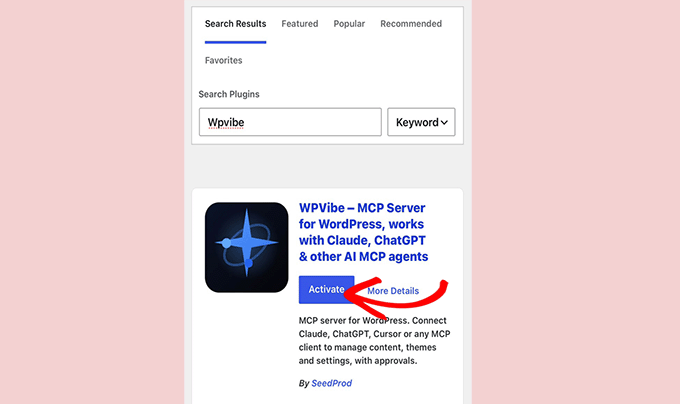
Once you activate it, WordPress shows an authorization screen asking whether you want to let the application connect to your account.
Tap the button to approve the connection.
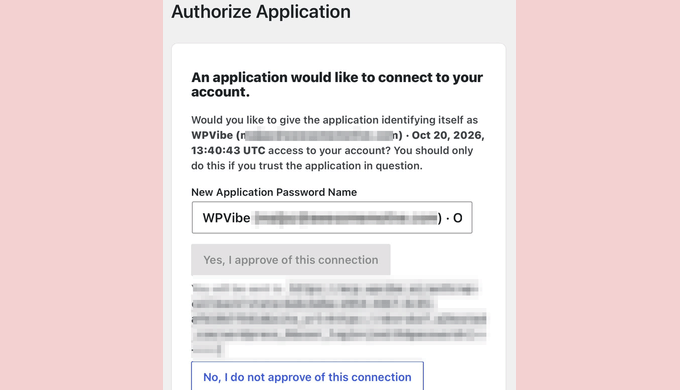
WordPress then creates an Application Password, which is a separate password your site makes for one app, so you never hand over your real login.
Once that’s done, WPVibe checks the connection and confirms your site by name.
Step 2. Add WPVibe in Claude
Note: We are using Claude in this tutorial, but you can do the same with the ChatGPT app on your phone. Simply click on in-app menu and go to Customize » Plugins and search for WPVibe plugin to install it.
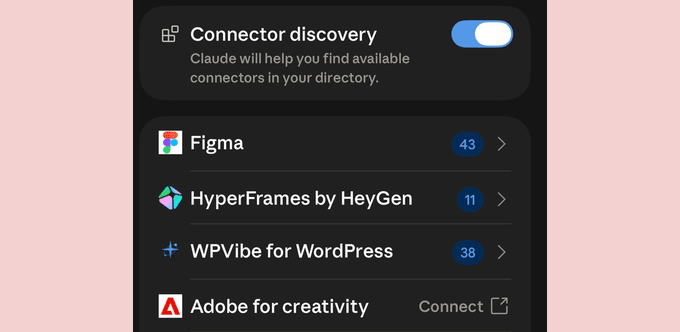
Next, install the Claude app on your phone and open Settings » Connectors. A connector is the link that lets an assistant reach another service, in this case your website.
WPVibe sits in Claude’s connector directory as ‘WPVibe for WordPress’, so there’s no server address to paste anywhere. Find it in the list and tap ‘Connect’.
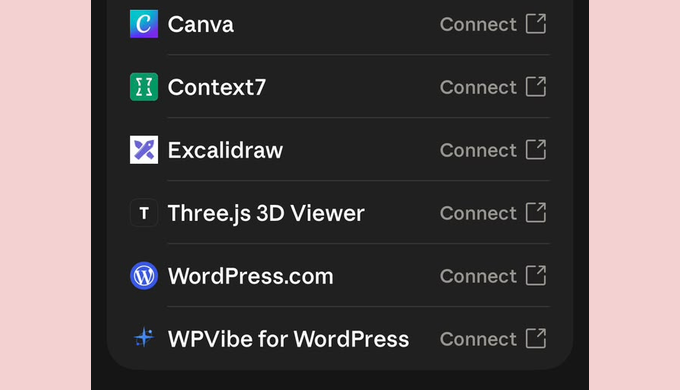
Your phone then asks whether you want to let Claude use mcp.wpvibe.ai to sign in. Tap ‘Continue’, and enter the email you want on your WPVibe account.
WPVibe will now email you a six-digit code. The code sits in the subject line, so you can read it from your notification without opening the email.
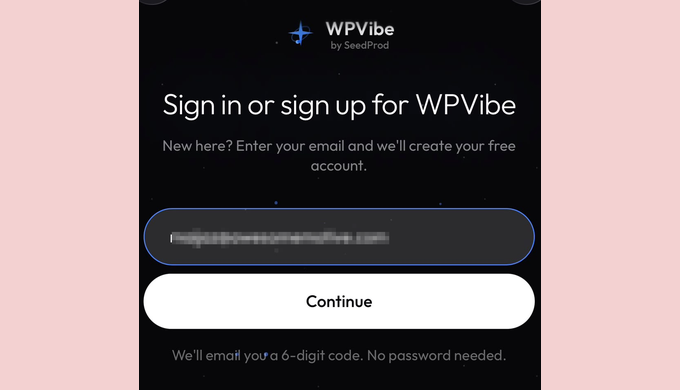
Type it in and you land back in Claude, connected with WPVibe for WordPress.
We did all of this inside the Claude app on an iPhone and never switched to a computer, though Anthropic still calls mobile connector installs a beta feature.
Step 3. Check the Connection
To confirm that your connection was successful, open a new Claude chat and make sure WPVibe is switched on in the chat’s tools. Then ask it to list your sites using the following prompt:
Use WPVibe to list my connected sites.
Claude came back in two to three seconds with our site name, its address and confirmation that read access was working.
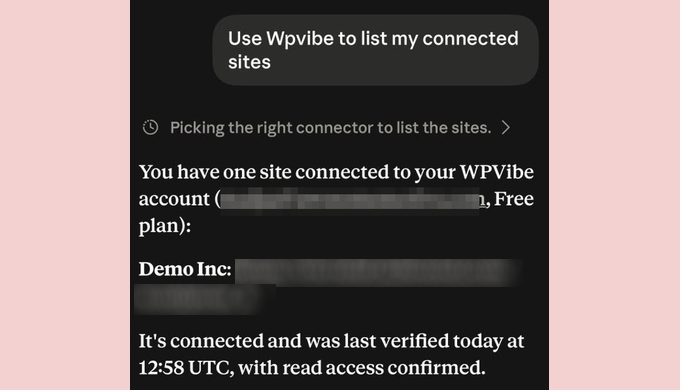
This request only reads your site, so it’s a safe first test.
Step 4. Do Real Jobs From Your Phone
Now that your phone is connected to WordPress, you can ask Claude to handle everyday tasks like updating plugins, fixing pages, and scheduling posts.
Check and Run Plugin Updates
Use the following prompt to ask Claude to check and run plugin updates. Before you run it on a live site, make sure to back up your site first.
Use WPVibe to check if any plugins on my site need updating, then update them.
Our test site had 45 plugins waiting for updates. Claude listed them and confirmed they were all inactive, so the job wouldn’t touch the live site.
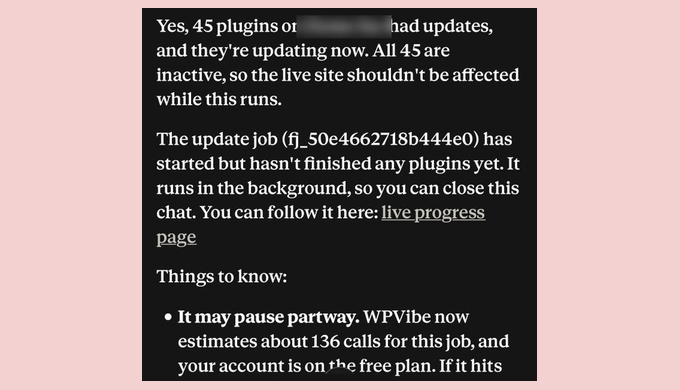
Claude also passed on WPVibe’s estimate that the job would need about 136 tool calls, and our account was on the free plan. Listing plugins counts as one call, while updating each plugin takes another.
The free plan allows 100 tool calls a day, so WPVibe warned the job might pause partway and pick up again later rather than fail. In our case it updated 43 of the 45 plugins and stopped early, because one of them failed to update.
Fix a Typo and Change a Button Link
You can ask Claude to make quick edits to an existing page without opening the WordPress editor. For example, we used this prompt to correct a typo and change a button’s destination URL:
On my site, open the Become a Fundraiser page, fix the typo in the first paragraph, and point the button at https://example.com/contact/
Claude made both changes, then read the page back to confirm them before telling us it was done.
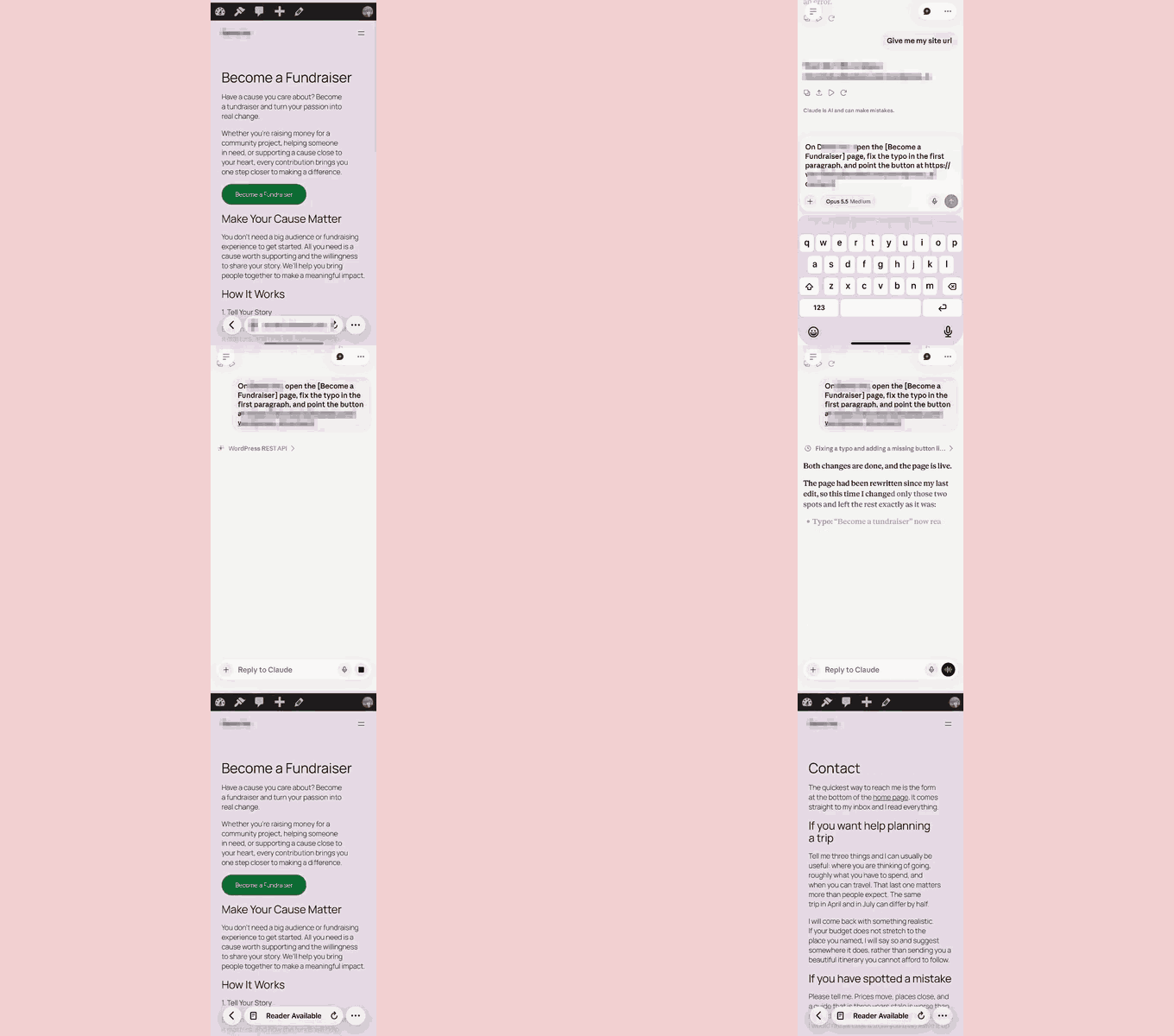
We opened the page on the phone afterwards and the button pointed where we asked. Checking the result yourself takes a few seconds and is worth doing every time.
Draft and Schedule a Post
Need to publish something new while you’re away from your computer? You can ask Claude to write a draft and schedule it for you.
Draft a short post for my site called 'How to save marine life in 2026', about 300 words, and schedule it for tomorrow morning.
Claude wrote the post, scheduled it for 9:00 AM and named the time zone it used. The whole thing took about a minute.
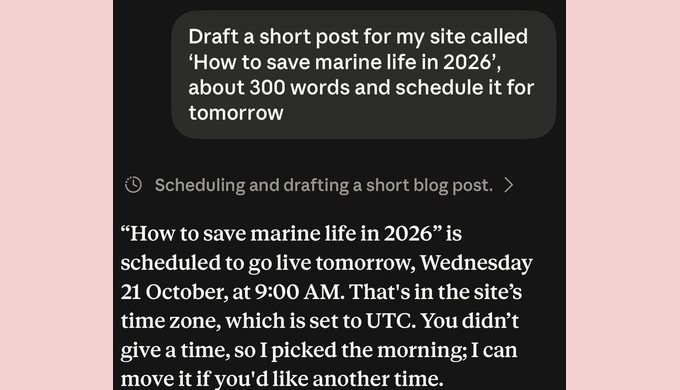
We checked the Posts screen in wp-admin afterwards and it was sitting there as Scheduled.
Find and Approve Pending Comments
Keeping up with comments is another task you can handle from your phone. Claude can check what’s waiting for approval and help you decide which comments to publish.
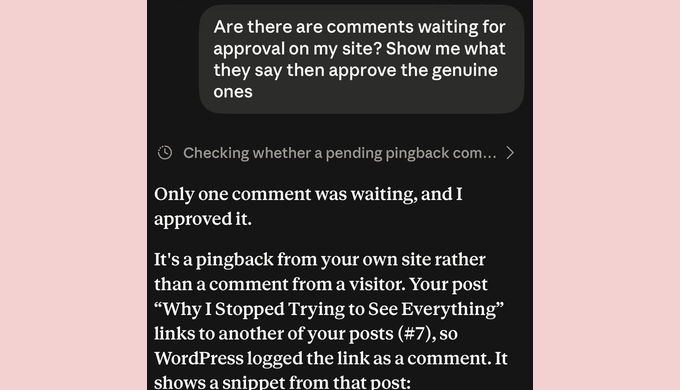
Are there any comments waiting for approval on my site? Show me what they say, then approve the genuine ones.
When we tried the prompt above, Claude found one pending comment.
It explained that the comment was a pingback, an automatic comment WordPress adds when a post links to one of yours. In our case, one of our own posts linked to another. Claude approved it and offered to undo the change if we wanted.
Ask What Is Wrong With Your Site
You can also ask Claude to check your site for problems. This is useful when you want a quick health check without digging through your WordPress dashboard. Start with a simple prompt.
Is anything wrong with my site?
On our site, Claude reported that nothing was broken, then listed what needed attention. That included a sign-up form that would not display because its plugin was inactive, and one plugin update that had failed.
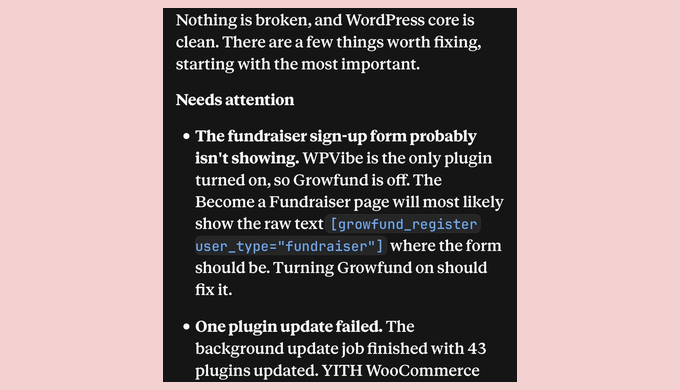
The health check took a couple of minutes, which is longer than the other jobs.
Step 5. Approving Changes
There are two types of approval to know about when using Claude with WPVibe. One controls which tools Claude can use, while the other protects your site from changes you can’t undo.
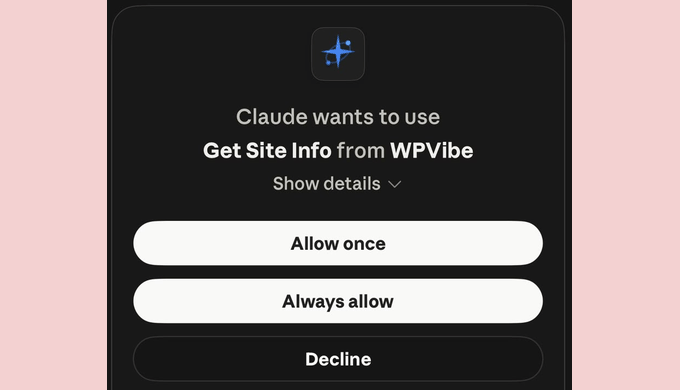
First, Claude may ask for permission to use a tool. You can allow it once or choose ‘Always allow’ so you don’t have to approve that tool every time.
During our page fix, Claude asked for permission three times as it used different tools.
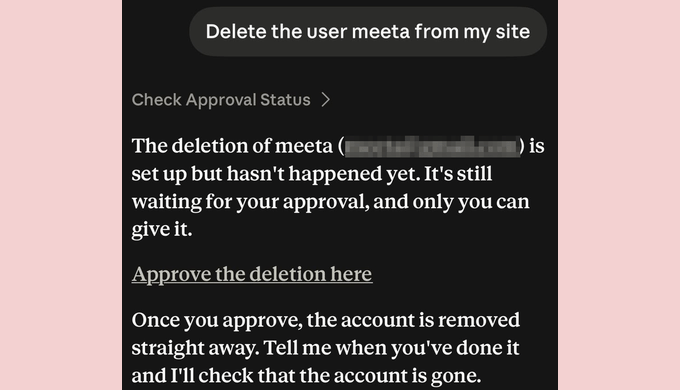
The second approval comes from WPVibe, and it applies to actions you can’t undo.
We tested this by asking Claude to delete a user account. Instead of deleting it immediately, Claude prepared the action and sent us an approval link.
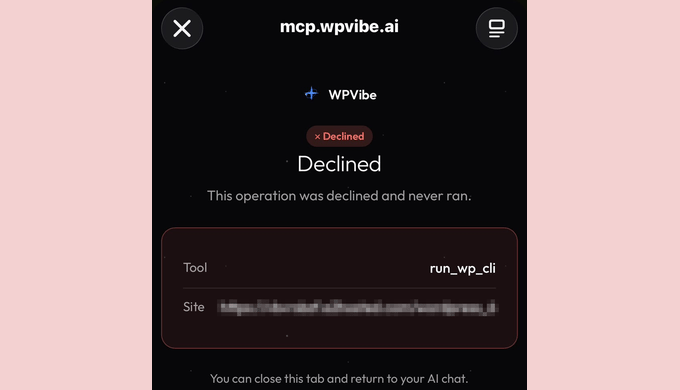
We tapped the link, and a WPVibe page opened in our browser. It showed which tool was about to run and which site it would affect.
We declined the request, and the page confirmed that the action never ran.
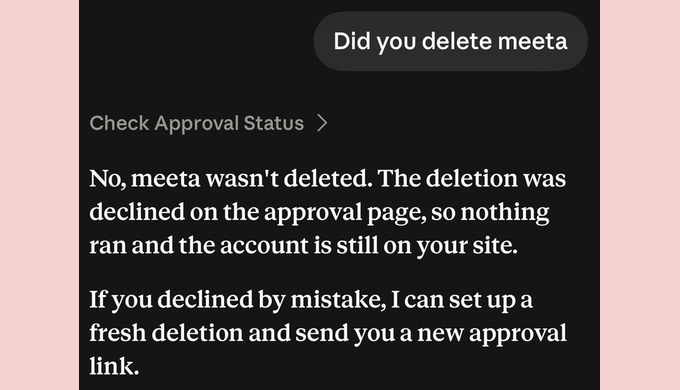
Back in Claude, the assistant confirmed the account was still there. It also offered a fresh approval link in case we’d declined by mistake.
While this WPVibe feature gives you a chance to review risky changes before they happen, it does mean switching to your browser to approve or decline certain actions.
For the full setup on a computer, see our guide on how to manage your WordPress website with ChatGPT or Claude.
Other Ways to Manage WordPress From Your Phone
If WPVibe and Claude aren’t the right fit for you, here are some other ways to manage your WordPress site from your phone.
1. The Official WordPress App
The free WordPress app for iPhone, iPad and Android works with self-hosted sites and is best for writing posts, uploading media, and managing comments.

You can even activate plugins from the app.
However, you can’t open plugin settings, update plugins, or edit pages built with a page builder. You’ll need your browser or an AI assistant for those tasks.
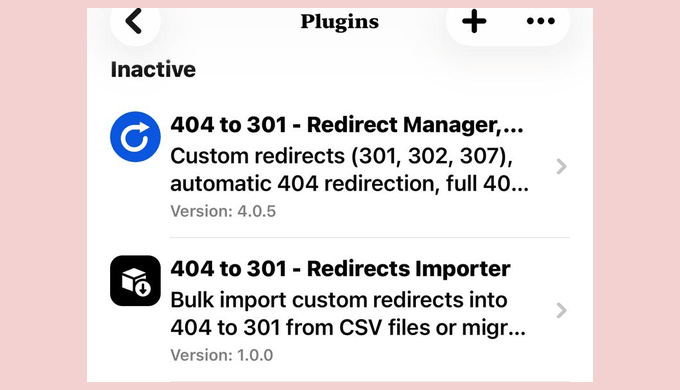
The app also lacks stats, notifications, and the Reader. These features moved to the separate Jetpack app in March 2023.
We tested the app on an iPhone and also checked it on Android, where the layout looks a little different but everything we tried worked the same way.
2. The Jetpack App
The Jetpack app gives you access to stats, notifications, and the Reader on your phone, but these features require the Jetpack plugin and a connected WordPress.com account.
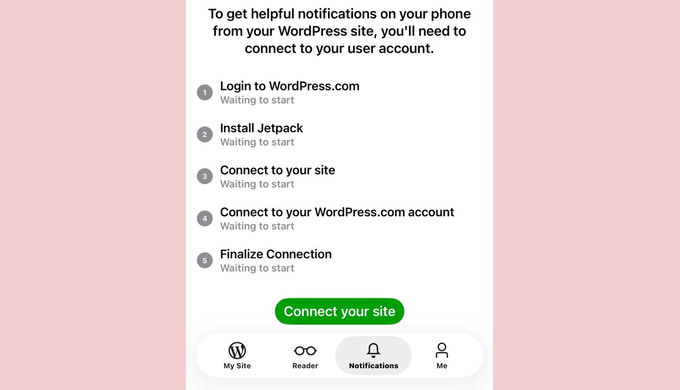
The app also supports post editing and basic plugin controls, much like the WordPress app.
However, Jetpack asks you to uninstall the WordPress app after you switch, because managing the same site from both apps is not supported and can cause data conflicts.
3. The ChatGPT App With WPVibe
WPVibe also connects to the ChatGPT app, which gives you a similar way to manage your WordPress site, and it works on ChatGPT’s free plan.
If you’d like to try it, follow our guide on managing your website with ChatGPT or Claude.
4. Open wp-admin in Your Phone’s Browser
Your phone’s browser gives you full access to wp-admin without installing another app, but the small screen can make some tasks tricky.
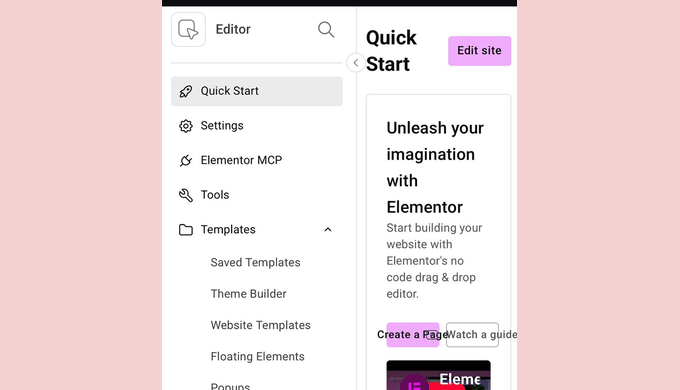
The menus and settings worked on our test phone, but when we opened Elementor, several buttons overlapped and were difficult to tap.
For more options, check out our list of the best mobile apps to manage your WordPress site.
Does WordPress Work on an iPad?
Yes, WordPress works on an iPad and other tablets, and the bigger screen makes most of this easier.
Your browser reaches wp-admin the same way a desktop does, with room for the menus and page builders that a phone can’t give you.
The WordPress app is a free universal download, so one install covers iPhone and iPad.
The Claude app also works on iPad, meaning you can follow the same WPVibe setup steps above.
Writing is where an iPad pulls ahead of a phone, so if you plan to draft posts on one, a keyboard case can make a real difference.
How to Keep Your Site Safe When Managing It From a Phone
Anyone holding your unlocked phone can reach your site through these apps, so lock it with a passcode or Face ID.
Also turn on two-factor login for wp-admin, so a stolen password isn’t enough to get in.
Read every approval before you tap it. The WPVibe approval page names the exact tool and the exact site, and that’s your chance to catch a request you didn’t intend.
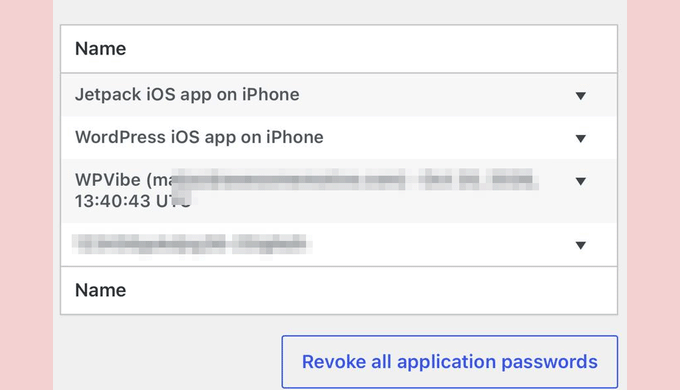
If you lose your phone, revoke the Application Password under Users » Profile in wp-admin. That immediately blocks the app from accessing your site.
Troubleshooting WordPress App and Connection Problems
The Connection Fails or the App Will Not Log In
Both WPVibe and the WordPress app sign in with Application Passwords, and some security plugins switch that feature off. Wordfence, for example, turns it off as soon as you activate the plugin.
If the authorization screen never appears, or appears and then fails, open WPVibe in your wp-admin menu and click ‘Allow for WPVibe’. That turns Application Passwords back on for WPVibe only, and your security plugin keeps blocking them for every other app.
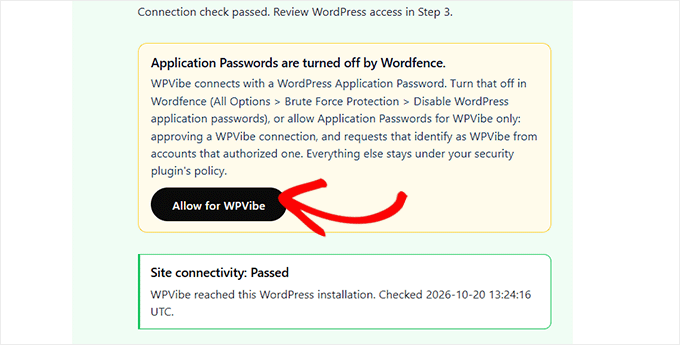
The WordPress app needs Application Passwords allowed in your security plugin. In Wordfence, untick ‘Disable WordPress application passwords’ under Wordfence » All Options » Brute Force Protection.
Your host can also be the cause. Some hosting companies limit XML-RPC and the REST API, which are the two ways apps talk to your site.
You can ask your hosting provider to confirm neither is disabled for your account.
Posts Started on Your Desktop Do Not Show in the App
The post is usually still there, and the app’s connection has gone stale. Pull down on the Posts list to refresh it.
If the post still does not appear, remove the site from the app and add it again, which rebuilds the connection.
Claude Answers Without Using WPVibe
If Claude gives you general advice instead of making changes to your site, WPVibe may be switched off for that chat. Open the chat’s tools, make sure WPVibe is enabled, and try again.
To check that it’s working, ask Claude to list your connected sites. If it returns your actual site details, you know the connection is active.
Managing WordPress From Your Phone FAQs
Is the WordPress app free?
Yes, the WordPress app is free on iPhone, iPad and Android, and it works with self-hosted sites running WordPress 4.0 or higher.
Do I need Jetpack to use the WordPress app?
No, you can write, edit and publish posts and moderate comments without it. Jetpack only comes in for stats, push notifications and the Reader.
What is the difference between the WordPress app and the Jetpack app?
The WordPress app handles content. The Jetpack app does the same and adds stats, notifications and the Reader, though those extras need the Jetpack plugin and a WordPress.com account.
Can I manage WordPress with Claude for free?
Yes, you can, within limits. Connectors work on every Claude plan, including the free one, and WPVibe’s free plan allows 100 tool calls a day.
A big job can pass that. When we asked Claude to update 45 plugins on our test site, it estimated about 136 calls. The Pro plan raises the limit to 500 calls a day for $99 a year.
Is it safe to let AI make changes to my site?
It is as safe as the habits you build around it. Anything that cannot be undone waits for your approval on a page naming the exact action and site, so read it before you tap.
Ask for drafts rather than published posts when you are unsure, and keep backups running.
We hope this guide helped you manage your WordPress site from your phone without being tied to a desk. You may also want to see our guide on turning your WordPress site to a mobile app and our list of ways to create a mobile-friendly WordPress site.
If you liked this article, then please subscribe to our YouTube Channel for WordPress video tutorials. You can also find us on Twitter and Facebook.
این خبر را در ایران وب سازان مرجع وب و فناوری دنبال کنید
مشاهده پاسخ های این مطلب
———————————————
این مطلب از سایت انجمن وردپرس گردآوری شده است و کلیه حقوق مطلق به انجمن وردپرس می باشد در صورت مغایرت و یا بروز مشکل اطلاع دهید تا حذف گردد
منبع: انجمن وردپرس