Do you want to add Twitter share and retweet buttons to your WordPress site?
Adding social buttons to your posts and pages is a great way to encourage readers to share and retweet your content. This can get you more followers, engagement, and visitors.
In this article, we will show you how to add Twitter share and retweet buttons in WordPress.

Why Add Twitter Share and Retweet Buttons in WordPress?
According to our marketing statistics research, Twitter has over 217 million monthly active users. That makes it a great place to promote your website.
However, sharing your content on social media only reaches users who are already following your account. If you want to reach a new audience, then you need to get people to share and retweet your content.
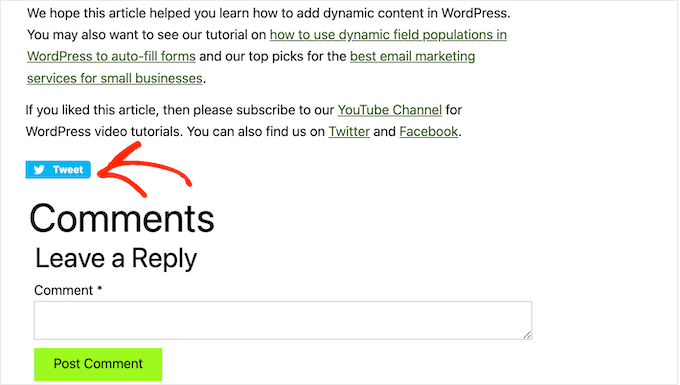
This can increase your blog traffic by introducing your brand to people who may not have been aware of your website. Reposting your content is also a powerful form of social proof. When someone shares a post or tweet with their followers, it’s often seen as an endorsement.
That said, let’s look at how easy it is to add Twitter share and retweet buttons in WordPress. Simply use the quick links below to jump straight to the method you want to use:
Method 1: Using Shared Counts (Quick and Easy)
The easiest way to add a Twitter share button to WordPress is by using the Shared Counts plugin. Shared Counts is one of the best social media plugins for WordPress that lets you add all kinds of sharing buttons to your site.
Unlike some other social sharing plugins, Shared Counts uses a unique caching method, so it won’t have a big impact on your website’s speed and performance.
First, you will need to install and activate the plugin. If you need help, then please see our guide on how to install a WordPress plugin.
Upon activation, go to Settings » Shared Counts to configure the plugin’s settings.
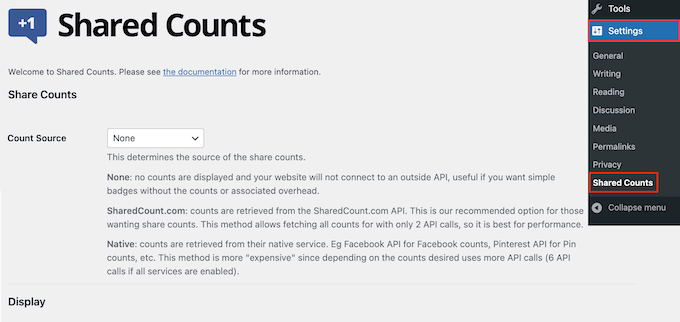
To start, scroll to ‘Share Buttons to Display’.
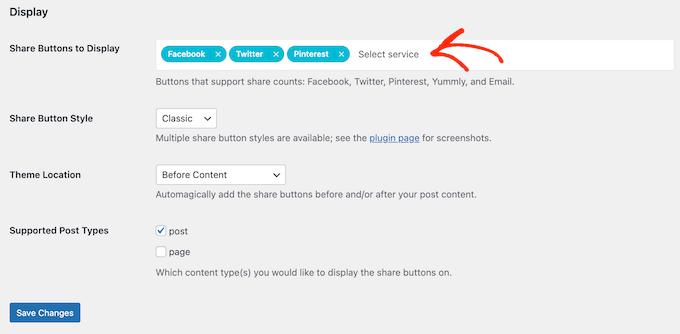
By default, Shared Counts adds sharing buttons for Facebook, Pinterest, and Twitter.
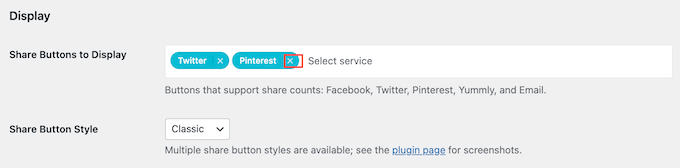
If you want to delete the Facebook or Pinterest sharing button, then simply click on its ‘x’ icon.
You can also add social sharing buttons for other platforms by typing into the field. For step-by-step instructions, please see our guide on how to add social share buttons in WordPress.
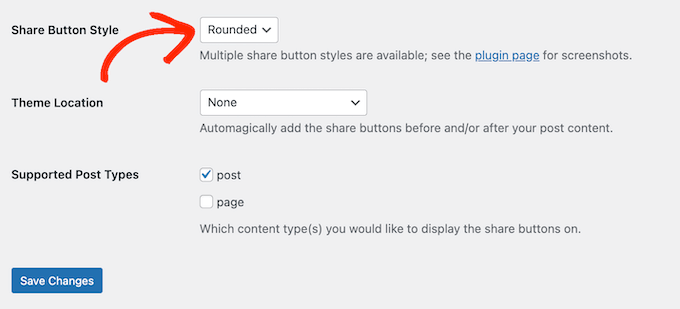
With that done, you will need to choose what type of button to use on your WordPress blog. There are 8 styles to pick from, and you can see examples of each button over at the Shared Counts plugin page.
When you have decided, just open the ‘Share Button Style’ dropdown and select the style you want to use.
After that, you must choose where to show the Twitter button in your WordPress theme by opening the ‘Theme Location’ dropdown menu.
Here, you can pick Before Content, After Content, or Before and After Content.
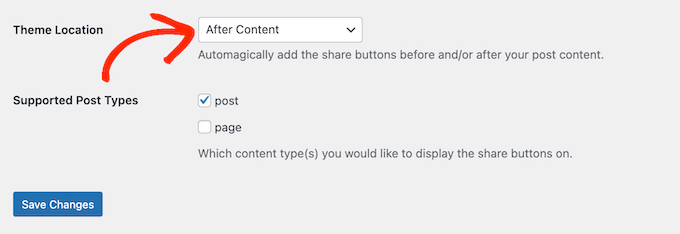
If you add the button to the top of the page, then more visitors will see it. However, most people will want to read a post before sharing it. With that being said, you may want to choose ‘After Content’ or ‘Before and After Content’.
Finally, you need to decide whether to add the Twitter button to your pages or posts.
By default, Shared Counts only adds the button to your posts. However, you may want to add it to your pages, too, especially if you create lots of landing pages or sales pages.
In that case, you can check the box next to ‘Page.’
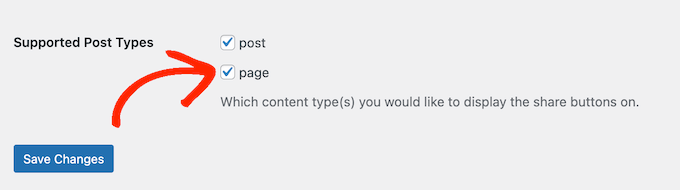
When you are happy with how the Twitter share button is set up, click on ‘Save Changes’.
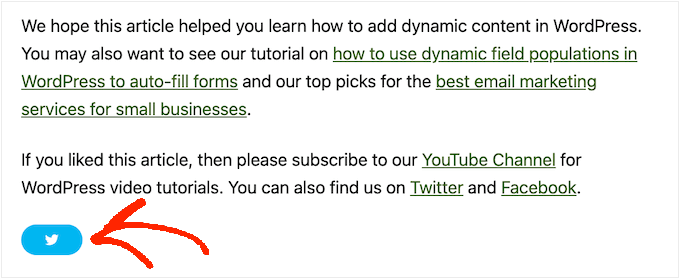
Now, if you visit your WordPress website, then you will see the sharing button in action.
Method 2: Using Twitter Feed Pro (Best for Getting Retweets)
If you want to add a simple share button to a page or post, then Shared Counts is a good option. However, you may also want to encourage visitors to retweet your recent tweets. This can get you more engagement and spread your content even further.
The best way to get more retweets is by using Smash Balloon Twitter Feed Pro. This plugin allows you to add your entire Twitter feed to any page, post, or widget-ready area.
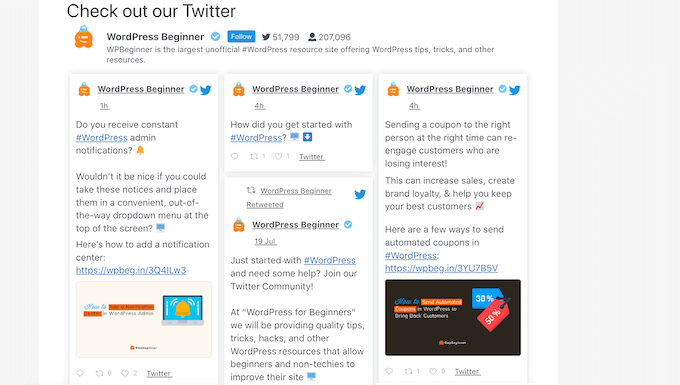
Each tweet has its own row of Twitter actions.
This means visitors can simply repost a tweet by clicking its ‘retweet’ button.
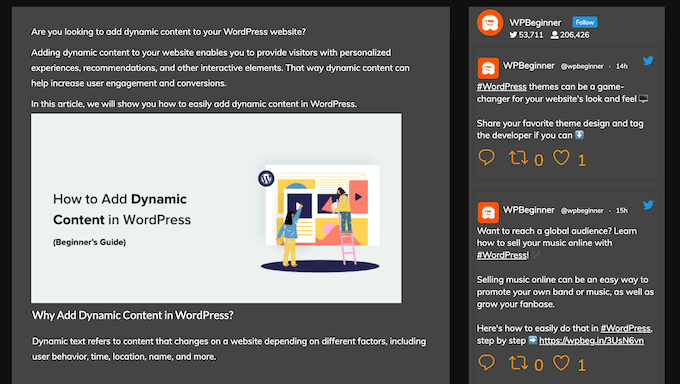
Even better, the feed updates automatically, so there are always new tweets for visitors to engage with. This can help keep your site fresh and interesting, even for regular visitors.
Set Up Twitter Feed Pro
First, you must install and activate Smash Balloon’s Twitter Feed Pro. If you need help, then please see our guide on how to install a WordPress plugin.
After you have installed the plugin, head over to Twitter Feed » Settings. You can now enter your Smash Balloon license key into the ‘License Key’ field.
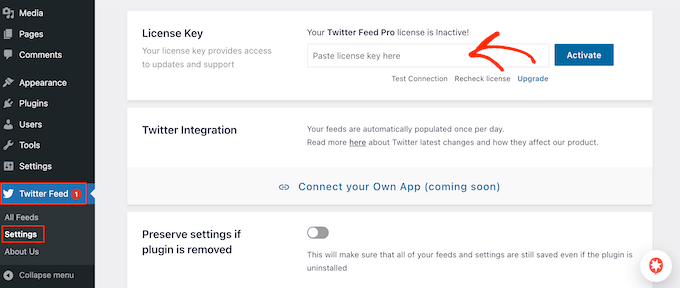
You can find this information in the confirmation email you got when you purchased Smash Balloon and in your Smash Balloon account.
After adding your license key, go ahead and click on the ‘Activate’ button.
Create a Live Twitter Feed for WordPress
Once you have done that, you are ready to create a custom Twitter feed. To get started, go to Twitter Feed » All Feeds and then click on the ‘Add New’ button.
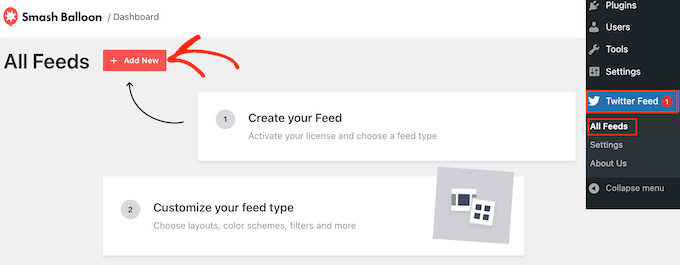
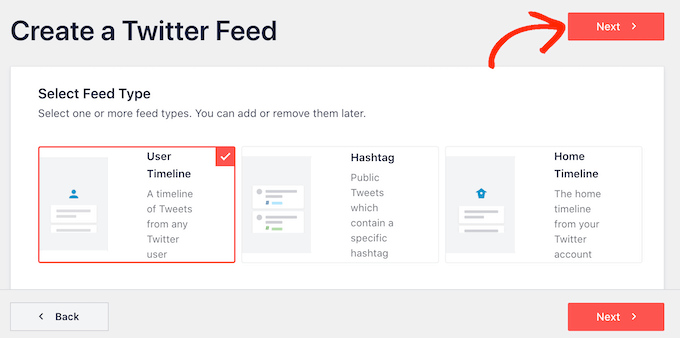
Smash Balloon will now show all the different types of Twitter feeds you can create.
Since you want more retweets, just select ‘User Timeline’ and click ‘Next’.
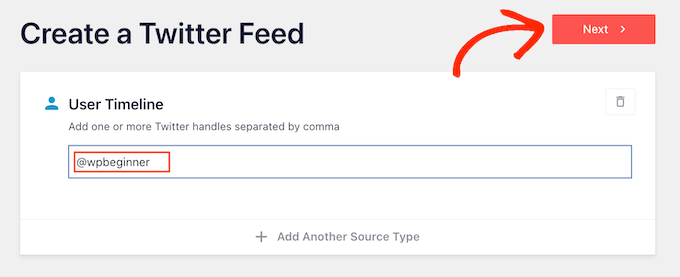
On the next screen, you need to type in the @ symbol followed by the name of your Twitter account.
When you are ready, click on ‘Next’ to open the main Smash Balloon editor.
Next, you can choose the template to use in your Twitter feed.
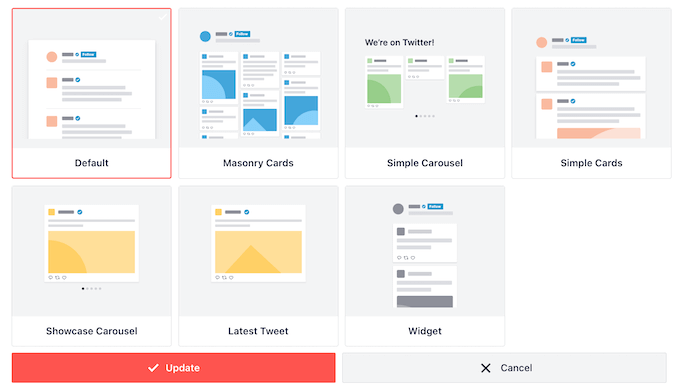
For example, you might show your tweets in a responsive slider by selecting ‘Simple Carousel’. If you only want to promote your most recent tweet, then you can select the ‘Latest Tweet’ template instead.
We will use the ‘Default’ template in all our images, but you can choose any template you want.
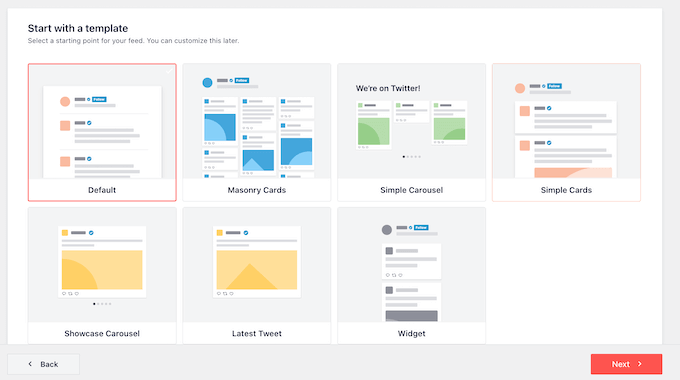
After making your decision, click on ‘Next’.
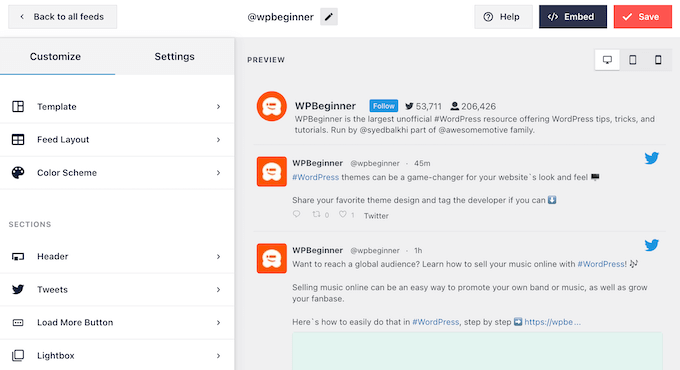
Smash Balloon will now show a preview of the social media feed, ready for you to customize.
Customize Your WordPress Twitter Feed
Not happy with how the template looks? To change it, simply select ‘Template’ from the left-hand menu.
You can then click on the ‘Change’ button.
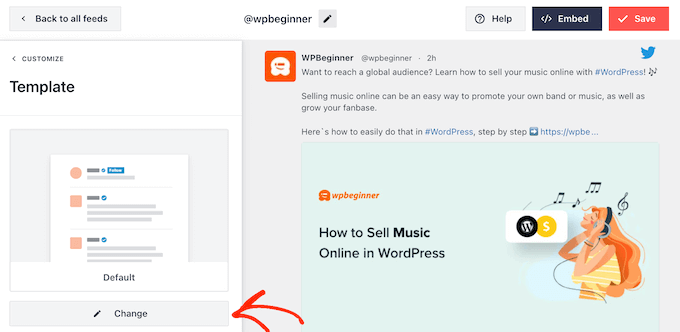
This opens a popup where you can choose a new layout.
Simply select a new template and then click on ‘Update’.
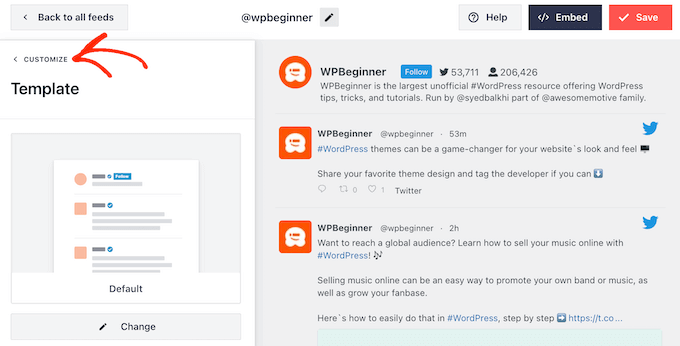
With that done, you need to click on the ‘Customize’ link.
This will take you back to the main Smash Balloon settings.
The next option in the left-hand menu is ‘Feed Layout’, so give it a click.
Here, you can change the height of the Twitter feed and the number of tweets the visitor initially sees. You can also switch between a Grid, Masonry, or Carousel layout.
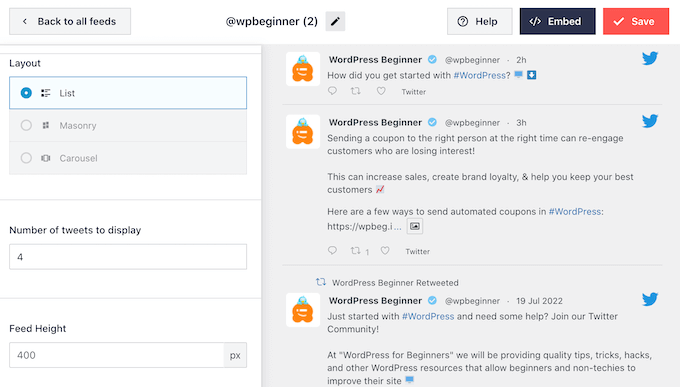
As you make changes, the preview will update automatically, so you can try different settings to see what looks the best.
Depending on the layout you are using, you may be able to change how many columns Smash Balloon displays on desktop, tablet, and mobile devices.
Smartphones and tablets typically have smaller screens and less processing power, so you may want to show fewer columns on mobile devices.
To do this, simply use the dropdown menus in the ‘Columns’ section.
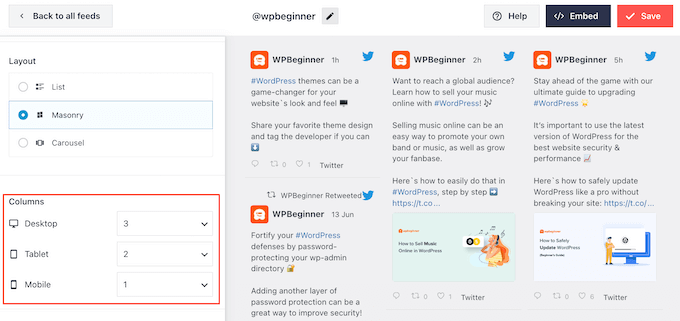
When you are happy with how the feed layout is set up, click on the ‘Customize’ link again to return to the main settings screen.
Here, you can click on ‘Color Scheme’.
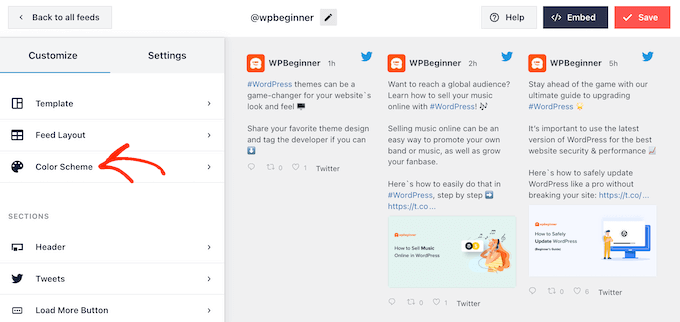
By default, Smash Balloon uses the colors inherited from your WordPress theme, but you can switch to a ‘Light’ or ‘Dark’ color scheme instead.
Another option is to create your own color scheme by selecting ‘Custom’ and then using the controls to change the background color, change the text color in WordPress, and more.
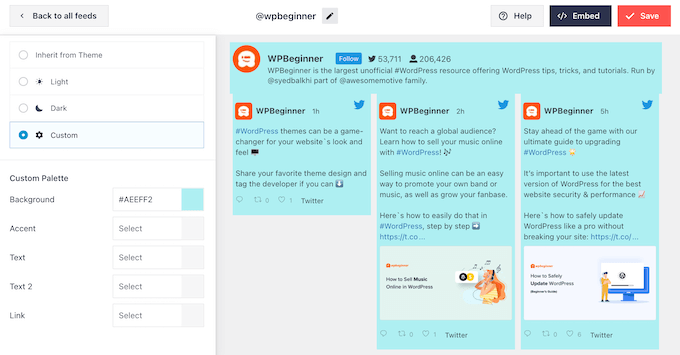
When you are happy with your changes, click on the ‘Customize’ link once again. Back on the main settings screen, you need to click on ‘Header.’
By default, Smash Balloon adds a ‘Standard’ header to the feed, which shows a ‘Follow’ button and your Twitter bio, if available.
If you want to hide the Twitter bio, then click to disable the ‘Show Bio’ toggle.
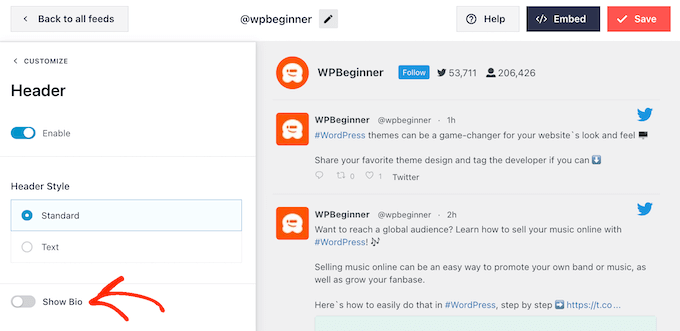
Another option is to select ‘Text,’ which adds a ‘We are on Twitter’ header to the feed.
You can replace this with your own messaging by typing it into the ‘Text’ box.
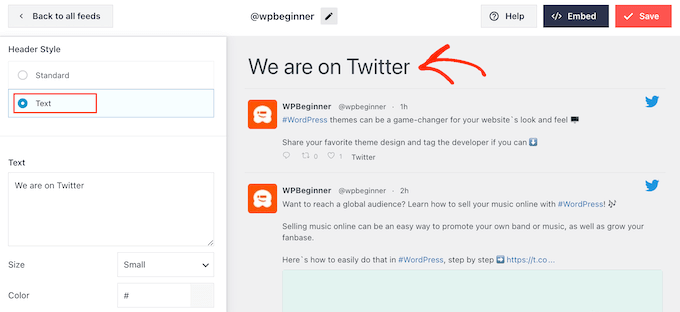
When you are happy with the messaging, you can change the header’s size and color.
After that, return to the main Smash Balloon settings screen and select ‘Tweets’. Here, you can choose between ‘Tweet Style’ and ‘Edit Individual Elements’.
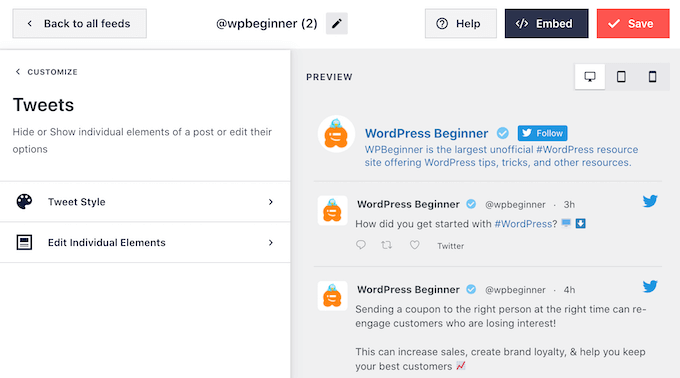
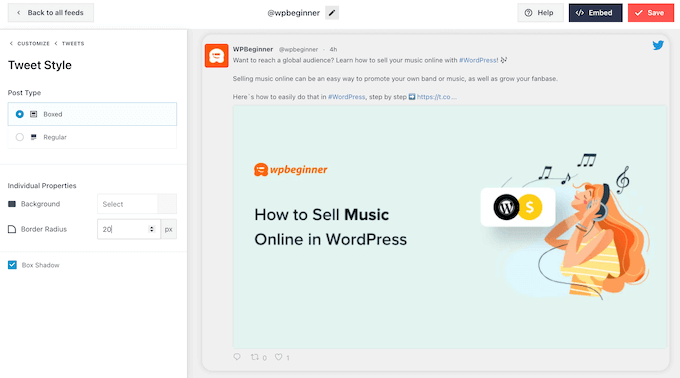
If you select ‘Tweet Style,’ then you can choose between boxed and regular layouts.
If you pick ‘Boxed’, then you can create a colored background for each tweet. You can also make the border radius larger to create curved corners or add a box shadow.
If you choose ‘Regular’, then you can change the thickness and color of the line that separates your different social media posts.
When you are happy with your changes, simply click on ‘Tweets’.
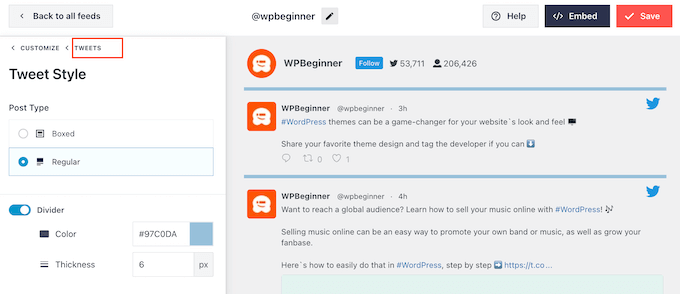
This takes you back to the previous screen.
This time, you can click on ‘Edit Individual Elements’.
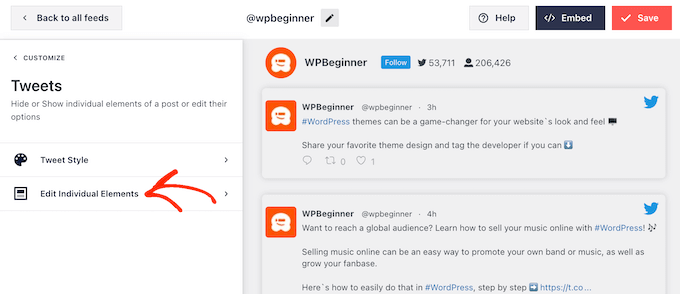
You will now see all the content that Twitter Feed Pro includes in each tweet, such as the author, tweet text, Twitter logo, and more.
To get as many retweets as possible, it’s a good idea to make the retweet icon stand out. To do this, click on the arrow next to ‘Tweet Actions’.
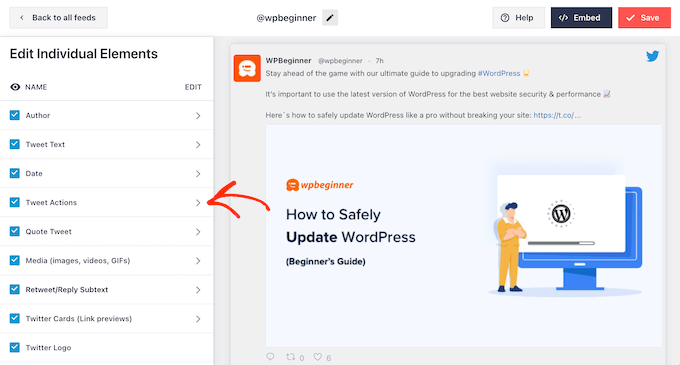
Here, you can make the tweet actions bigger using the ‘Size’ dropdown and change the color.
Just be aware that Smash Balloon will apply these changes to all the tweet actions and not just the ‘retweet’ icon.
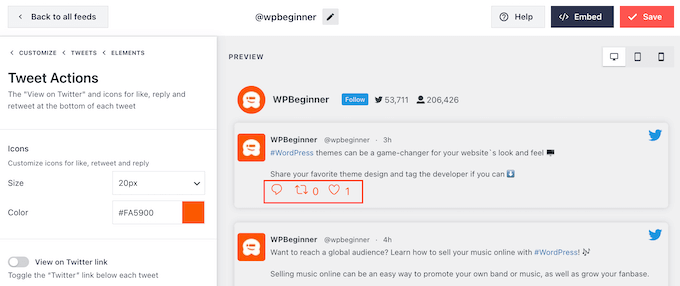
When you are happy with how the tweet actions look, just click on the ‘Elements’ text.
This will take you back to the previous screen.
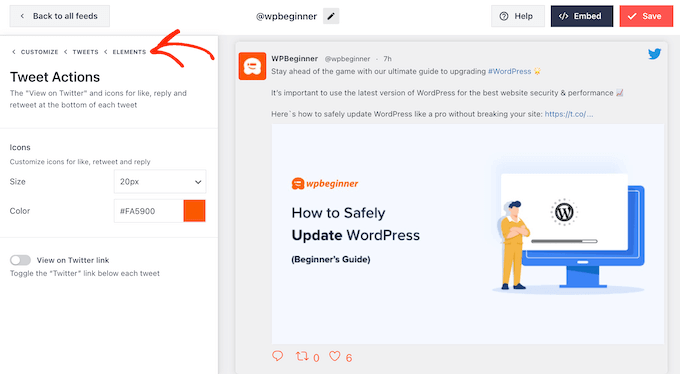
Simply repeat this process to customize any of the other individual elements.
You can also hide an element by unchecking its box.
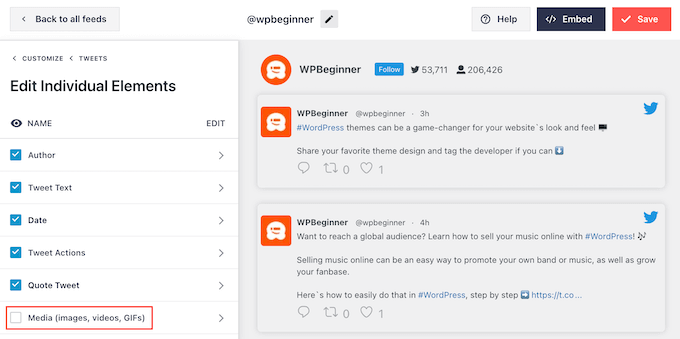
Hiding unnecessary content is another trick that can help the retweet action stand out.
When you are happy with how the tweets look, you can return to the main Smash Balloon settings screen and select ‘Load More Button.’
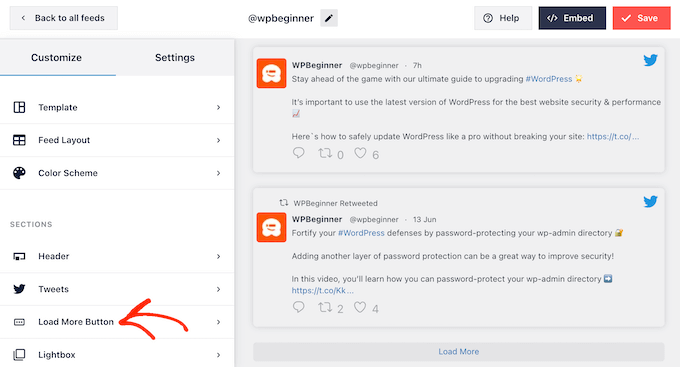
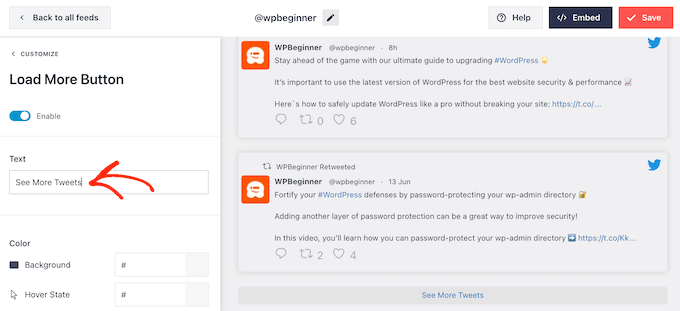
Since it’s such an important button, you may want to customize it by changing its background color, hover state, label, and more to match your site’s design.
You can also replace the default ‘Load More’ text with your own messaging by typing it into the ‘Text’ field.
Another option is enabling infinite scroll so that new tweets appear automatically when visitors reach the end of the feed. This encourages visitors to explore more of your tweets and may get you some extra retweets.
To enable this feature, simply click on the ‘Infinite Scroll’ slider so it turns from grey (disabled) to blue (enabled).
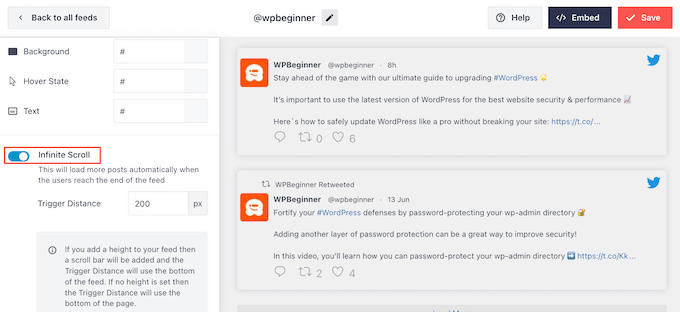
You can also change the ‘Trigger Distance’, which tells Smash Balloon when to load new tweets. However, the default settings should work well for most WordPress websites.
After that, the final option on the main Smash Balloon settings screen is ‘Lightbox’.
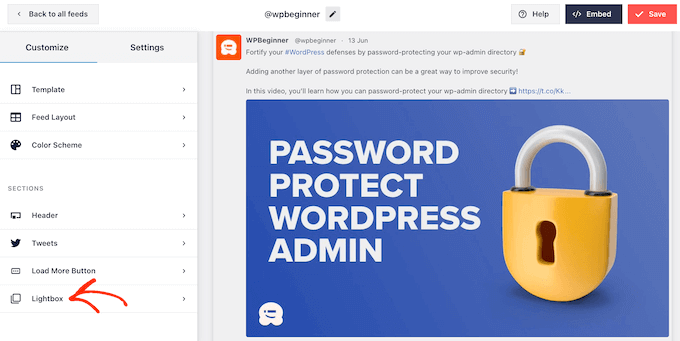
By default, Twitter Feed Pro allows visitors to scroll through the feed’s images and videos in a lightbox popup.
This can get you some extra retweets, as visitors can get a closer look at the feed’s images and watch your videos without leaving the website.
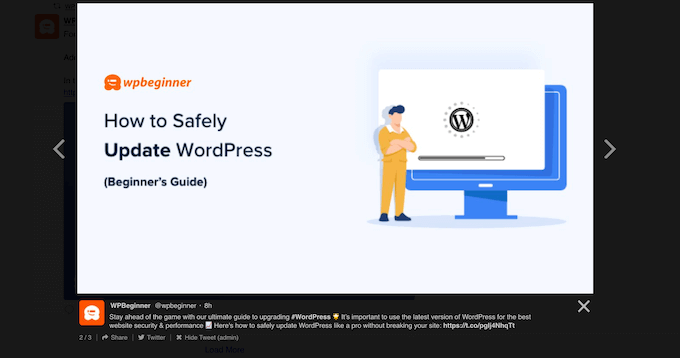
With that in mind, we recommend leaving the lightbox enabled.
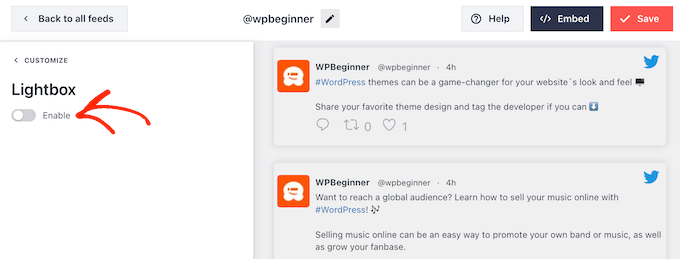
However, if you want to disable this feature, then simply click on the blue ‘Enable’ toggle so that it turns grey.
When you are happy with how the Twitter feed looks, don’t forget to click on ‘Save’. After that, you are ready to embed the Twitter feed and retweet buttons on your WordPress website.
How to Add Your Twitter Feed to WordPress
You can add the feed to your website using either a shortcode or the Twitter Feed block. Since it’s the easiest method, let’s first see how you can add the feed to any page or post using the Smash Balloon block.
If you have created more than one feed, then you will need to find the code for the feed you want to embed.
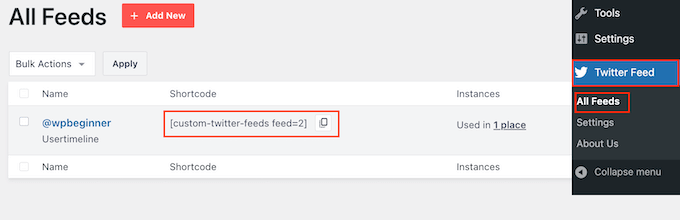
To get this information, go to Twitter Feeds » All Feeds and copy the code in the ‘Shortcode’ column. You will need to add this code to your site, so make a note of it.
In the following image, we will need to use [custom-twitter-feeds feed=2]
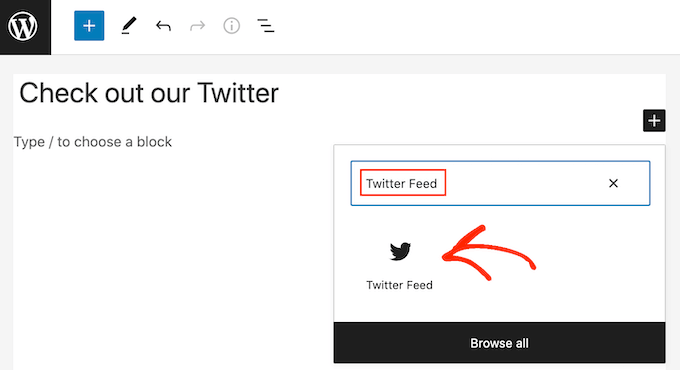
After that, simply open the page or post where you want to embed the Twitter feed. Then, click on the ‘+’ icon to add a new block and start typing ‘Twitter Feed’.
When the right block appears, click to add it to the blog post.
The block will show one of your Twitter feeds by default. If you want to use a different feed, then find ‘Shortcode Settings’ in the right-hand menu.
Here, simply add the shortcode and then click on ‘Apply Changes’.
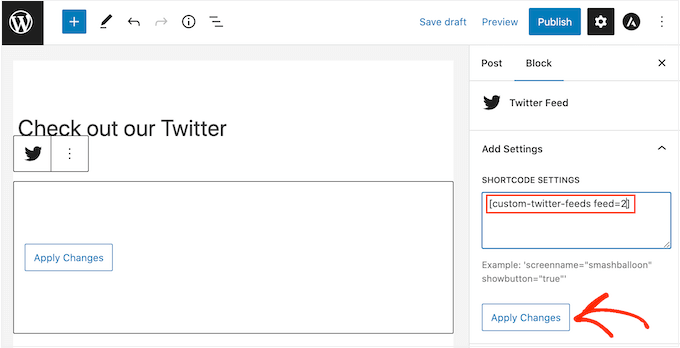
The block will now show your Twitter feed, and you can simply publish or update the post to make it live on your website.
Another option is to add the feed to any widget-ready area, such as the sidebar or similar section. This allows visitors to retweet your latest posts from any page of your website.
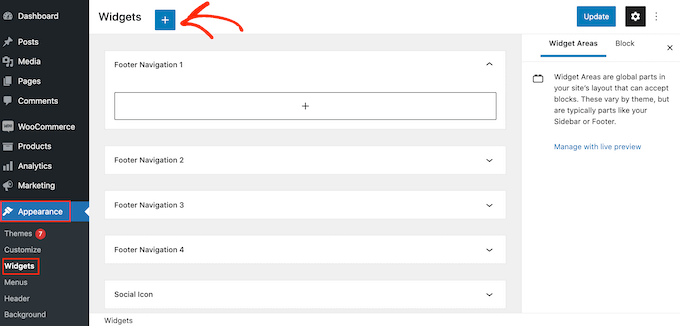
Simply go to Appearance » Widgets in the WordPress dashboard and then click on the blue ‘+’ button.
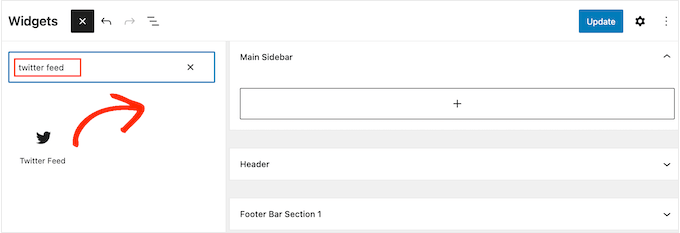
Once you have done that, you need to type in ‘Twitter Feed’ to find the right widget.
Then, just drag it onto the area where you want to show the feed and retweet buttons.
The widget will show one of the feeds you created using Smash Balloon.
To show a different Twitter feed instead, type the feed’s code into the ‘Shortcode Settings’ box and then click on ‘Apply Changes’.
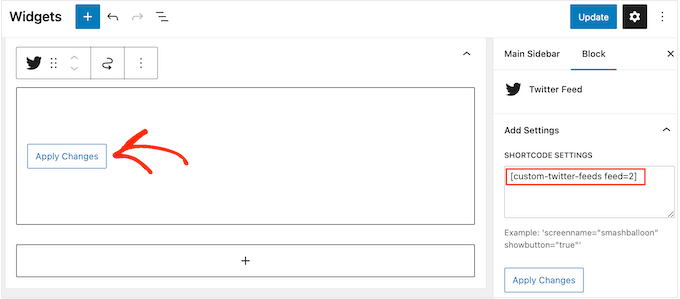
You can now click on the ‘Update’ button to make the widget live. For more information, please see our step-by-step guide on how to add and use widgets in WordPress.
Finally, you can embed the feed and retweet buttons on any page, post, or widget-ready area using a shortcode.
Simply go to Twitter Feed » All Feeds and copy the code in the ‘Shortcode’ column. You can now add the shortcode to any widget-ready area on your site.
For more information, please see our detailed guide on how to add a shortcode in WordPress.
We hope this article helped you add Twitter share and retweet buttons in WordPress. You may also want to check out our guide on how to create an email newsletter or see our expert picks for the best web push notification software.
If you liked this article, then please subscribe to our YouTube Channel for WordPress video tutorials. You can also find us on Twitter and Facebook.
این خبر را در ایران وب سازان مرجع وب و فناوری دنبال کنید