Do you want to add a Facebook Like Box to your WordPress website?
Adding a Facebook Like Box to your website makes it easy for your audience to like and follow your Facebook page. The more likes you get, the more reputable and trustworthy your brand will look to new users.
In this article, we will show you how to add a Facebook Like Box in WordPress.

Why Add a Facebook Like Box on Your WordPress Website?
Adding a Facebook Like Box to your WordPress website has some great perks.
First, it helps engage people by letting them easily like your Facebook fan page or business page. This means your posts will show up in their Facebook feed, so you can keep reaching people beyond your website.
Also, the Facebook page Like Box shows how many people have liked your Facebook page. This can work as social proof and encourage more visitors to click ‘Like.’
This tutorial will show you two ways to add a Facebook Like Box: one using a social plugin and the other with code. You can use the quick links below to navigate through our article:
Method 1: Adding a Facebook Like Box With a Plugin (Easy)
This first method is the easiest and recommended way for beginners to add a Facebook Like Box to their sites. It will also allow you to display your Facebook feed on your website if you wish.
This method uses Smash Balloon, which is a user-friendly WordPress plugin that allows you to embed various social media feeds in WordPress, along with a Like Box.
For this tutorial, you can use the free Smash Balloon Social Post feed plugin. But if you want more features beyond the Like Box (like displaying videos, photos, and events), then we recommend upgrading to the Pro version.
Set Up the Smash Balloon Facebook Feed Plugin
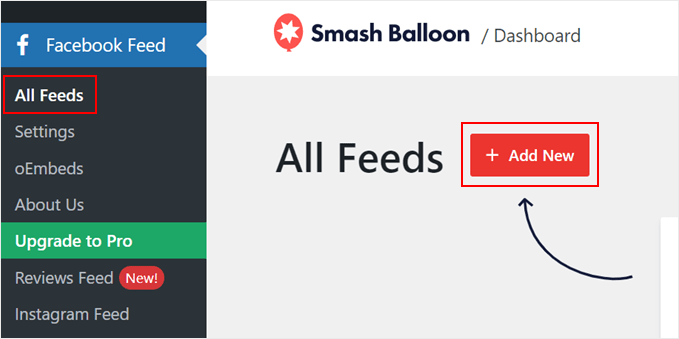
First, you need to install the WordPress plugin in the admin area. After that, go to Facebook Feed » All Feeds and click ‘Add New.’
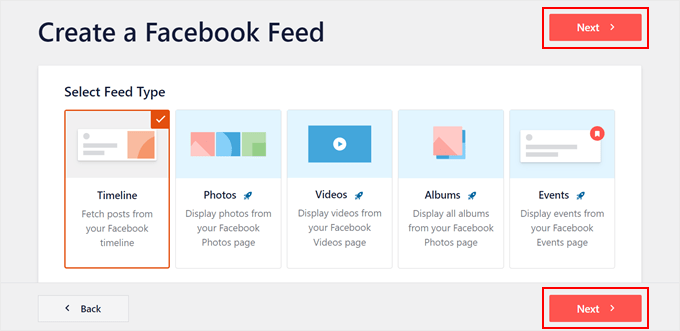
Now, select the ‘Timeline’ feed type.
Then, simply click the ‘Next’ button.
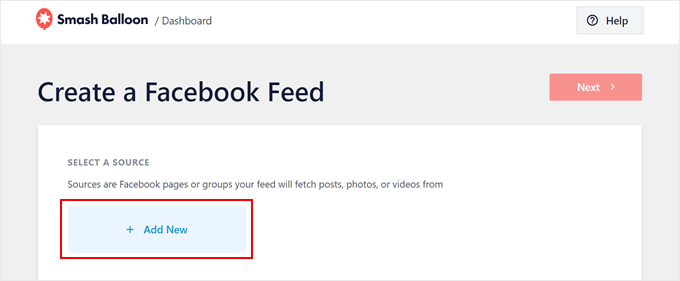
At this stage, you will need to connect your Facebook page to your WordPress website.
What you need to do is click the ‘Add New’ button.
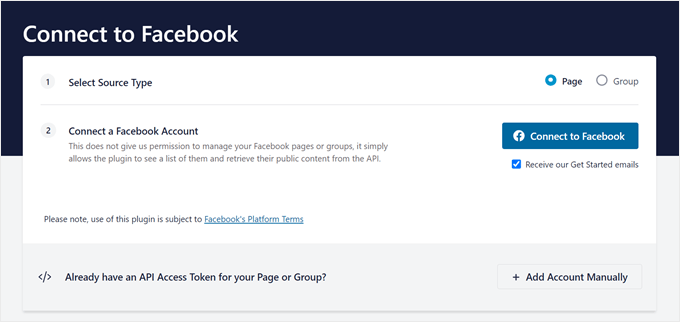
Smash Balloon will direct you to a new screen.
Here, just select ‘Page’ for the source type and then click ‘Connect to Facebook.’
Now, you need to log in to your Facebook account.
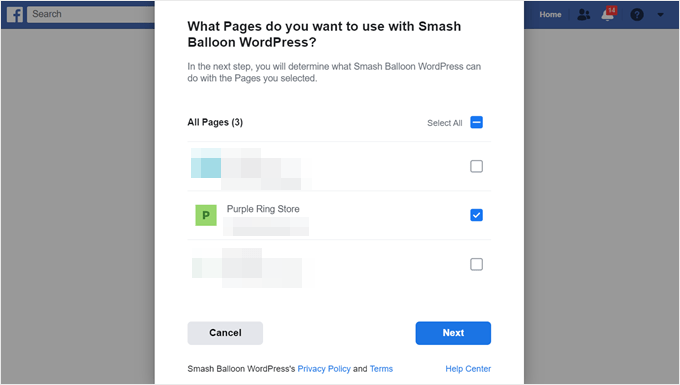
After that, choose which page(s) for which you want to display the Like Box on your WordPress blog or website. Then, click ‘Next.’
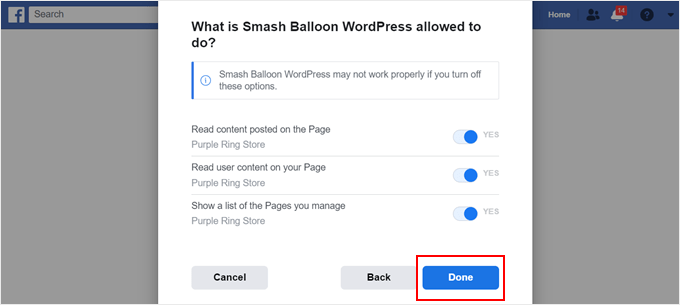
You will now see the Smash Balloon’s permission settings. We recommend enabling them all to make sure everything works well.
Now, go ahead and click ‘Done.’
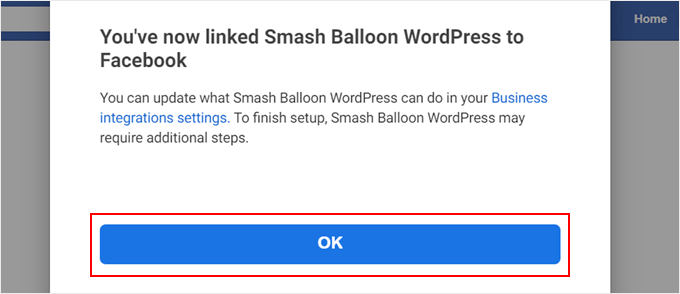
The last popup will simply confirm that you’ve successfully linked Smash Balloon with Facebook.
Simply click ‘OK’ to continue.
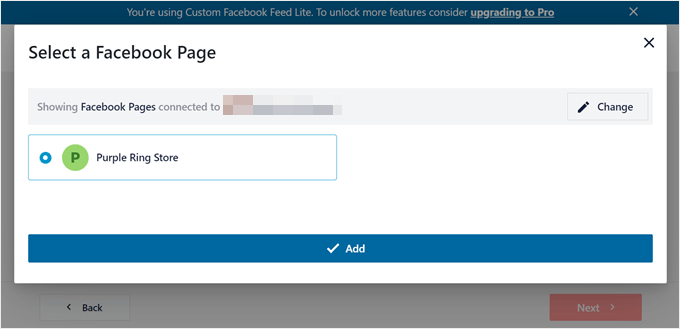
Smash Balloon will now redirect you to the admin area, where you have to select a Facebook page to use in your timeline feed.
Just pick a page and click ‘Add.’
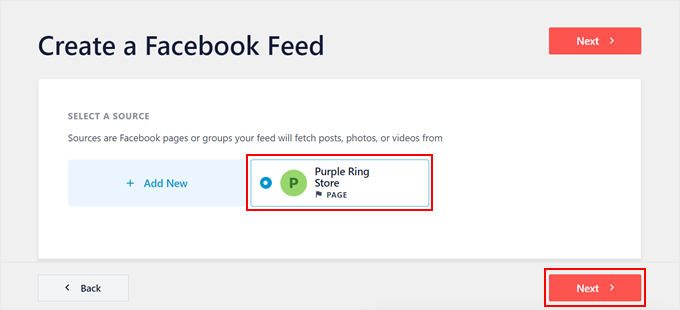
You will now see the Facebook page you’ve just connected to as a source in the Smash Balloon plugin page.
Simply pick that and click ‘Next.’
Customize the Facebook Like Box
At this stage, Smash Balloon will bring you to the Facebook feed editor.
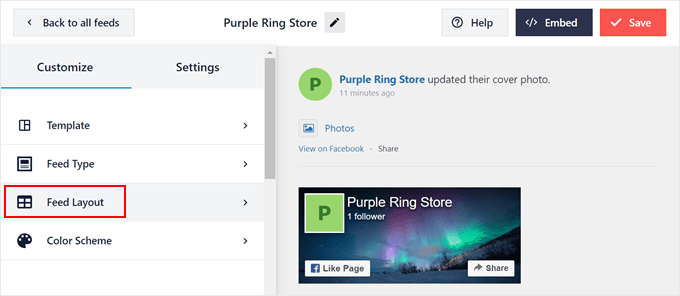
The first step is to click ‘Feed Layout’ above the Color Scheme option.
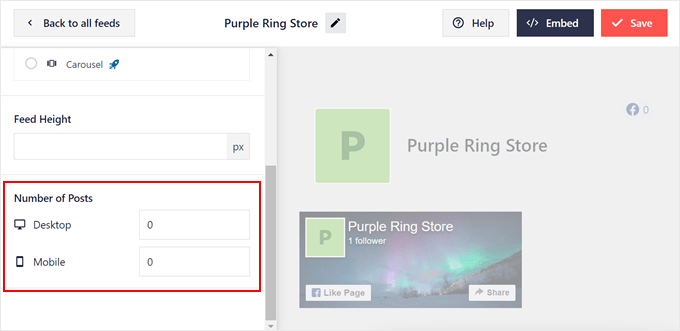
Simply scroll down to the ‘Number of Posts’ section.
After that, set the number for both Desktop and Mobile to 0. This will remove the display of all your recent posts and have the feed display the Like Box only.
Alternatively, if you also want to show your Facebook feed along with the Like Box, then you can follow our tutorial on how to create a custom Facebook feed in WordPress.
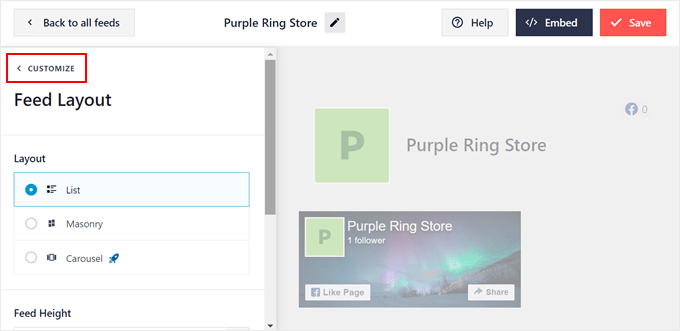
Now, go back up.
Then, click ‘Customize’ to go back to the feed editor page.
At this stage, you can remove the header of your Facebook feed.
What you need to do is move down to the ‘Sections’ part and select ‘Header.’
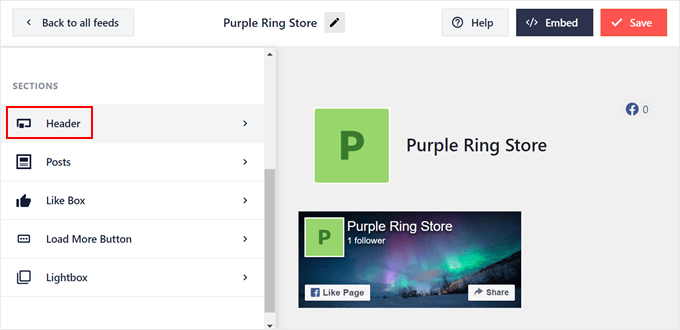
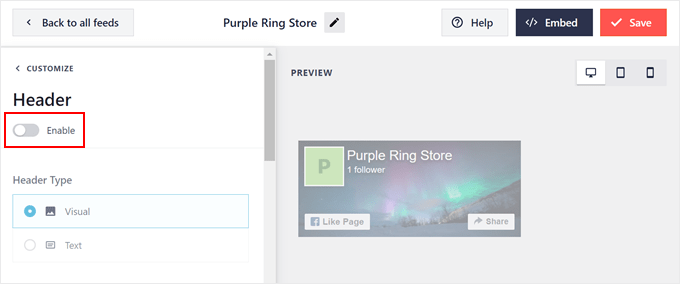
This Header setting determines what your Facebook feed’s header will look like.
But in this case, you need to hide it, so just turn off the ‘Enable’ toggle.
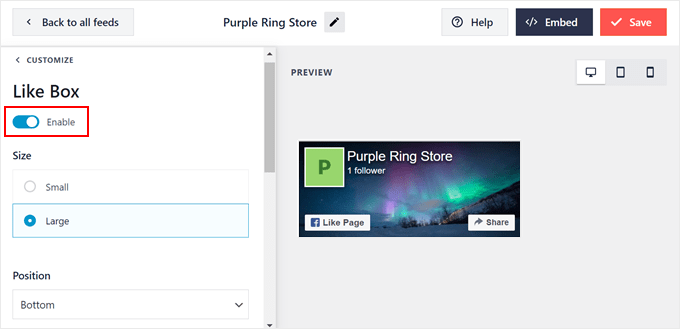
Let’s now go back to the main feed editor page and open the ‘Like Box’ setting. After that, simply turn on the ‘Like Box’ feature.
On this page, you can also adjust the Like Box’s size, position, cover photo display, custom width, custom call-to-action text, and so on.
Once that’s done, just hit the ‘Save’ button in the top right corner.
Embed the Facebook Like Box on Your WordPress Page or Post
At this stage, you can display the Facebook Like Box on a page or a widget-ready area like a sidebar.
To do this, click ‘Embed’ at the top right corner. Now, the Embed Feed popup will appear, giving you two options to display the Like Box.
One is to use a shortcode, and the other is to directly add it to a page or a widget-ready area. The second option is much easier, so we will show you that method first.
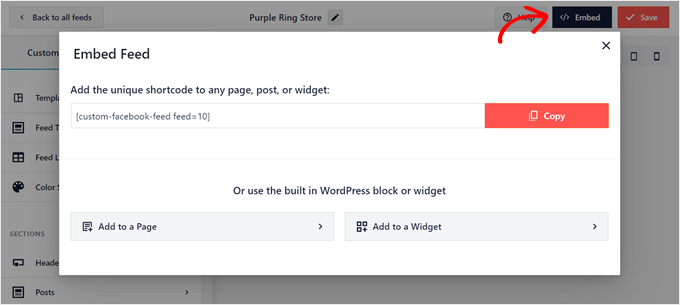
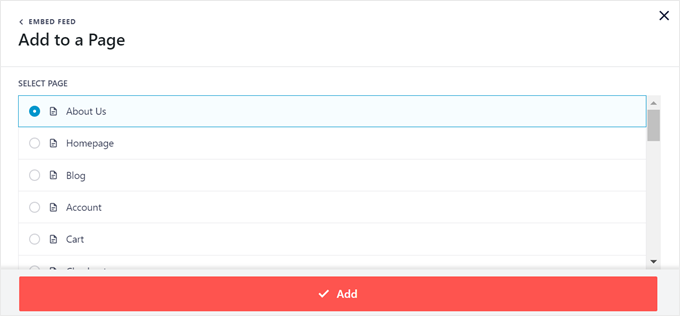
If you want to add the Like Box to a specific page, click the ‘Add to a Page’ button.
Now, just select a page to add the feature to and click ‘Add.’
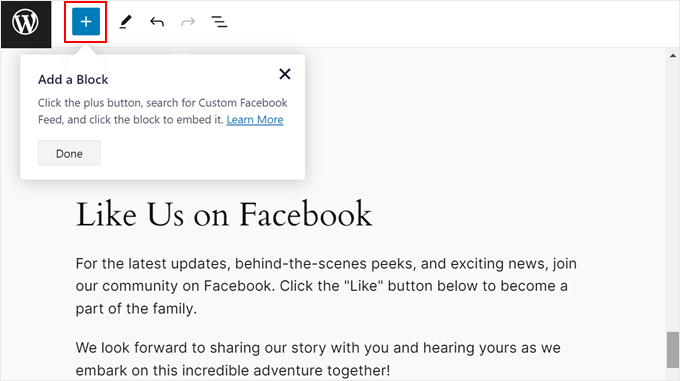
You will now arrive at the Gutenberg block editor.
Go ahead and click the ‘+ Add a Block’ button, as instructed by Smash Balloon.
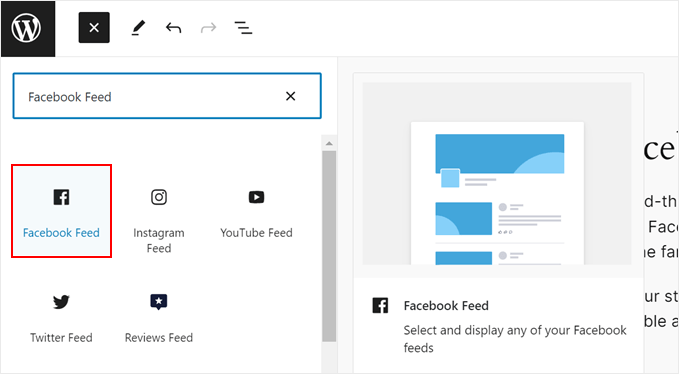
Once the block inserter library is open, you need to find the Facebook Feed block.
Then, simply drag and drop it wherever it looks best on the page.
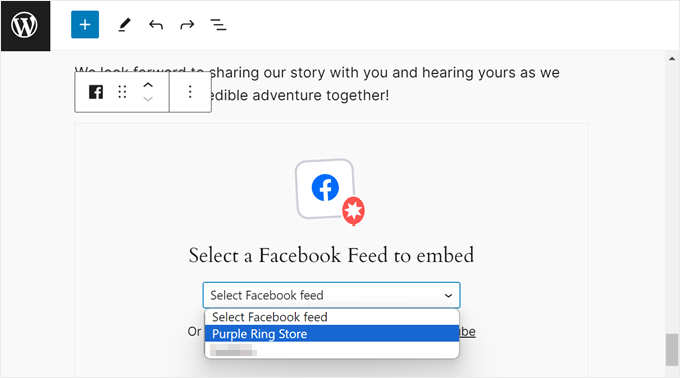
In the block, select the Facebook feed with the Like Box you just created earlier.
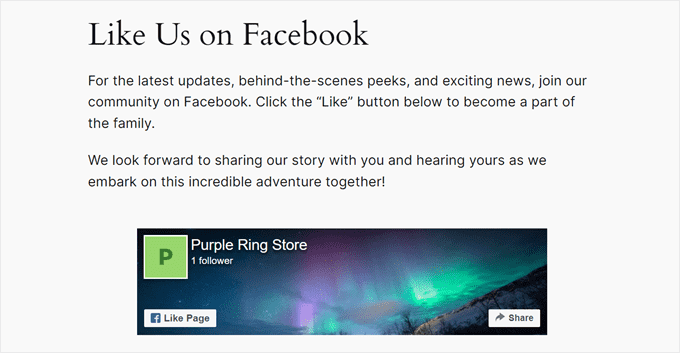
The block will then display the Like Box.
But what if you have multiple Facebook pages and have set up a Like Box for each one using Smash Balloon?
You can also switch between them in the block settings sidebar by picking a feed from the ‘Select a Feed’ dropdown menu.
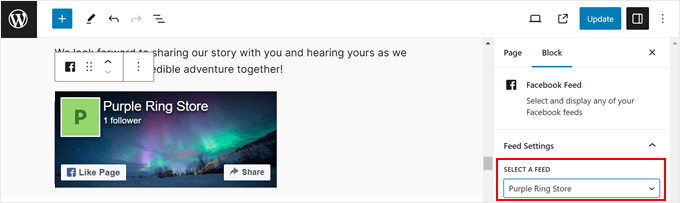
All you need to do now is click the ‘Update’ button to make the changes official.
Here’s what our Like Box looks like on our demo site:
If you use a block WordPress theme, then you can also use the Full Site Editor to add the Facebook Like Box block to your theme’s page templates.
For more information about the Full Site Editor, just read our beginner’s guide to Full Site Editing.
Embed the Facebook Like Box Widget in WordPress
If you use a classic WordPress theme, then you may want to display the Facebook Like Box in a widget-ready area, like a sidebar, header, or footer. It’s a great way to show the Like Box without distracting users from the main content on the page.
In the Embed Feed popup, select ‘Add to a Widget’ to go to the block-based widget editor.
Now, like in the previous method, just click the ‘+ Add Block’ button, find the Facebook Feed block, and drag it onto your desired area.
On our demo site, we want to use the Like Box as a WordPress sidebar widget.
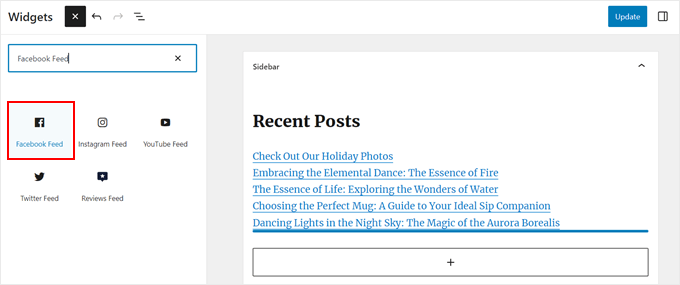
In the block, select the Facebook Feed with the Like Box you created earlier.
Then, click ‘Update’ to make the changes live.
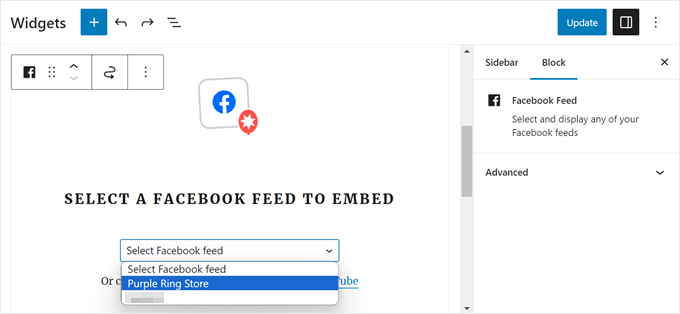
And you are done!
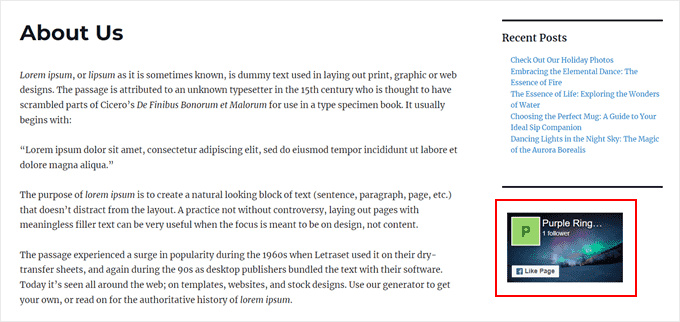
Here’s what the sidebar on our test site looks like with the Like Box widget:
Embed the Facebook Like Box Widget With a Shortcode
If the two previous methods don’t work, then we recommend adding the Facebook Like Box or Fan Box using a shortcode.
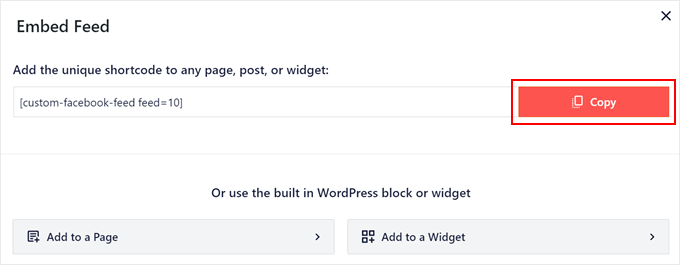
Simply copy the shortcode from the Embed Feed popup earlier and add it anywhere on your website.
For more information on using shortcodes, you can read our guide on how to add shortcodes in WordPress.
Method 2: Adding a Facebook Like Box With Code
If you are only interested in displaying a Like Box without adding any other types of Facebook feeds, then using a Facebook page plugin may seem like overkill. In this case, you can add the Like Box using code instead.
This method may seem intimidating for beginners, but we will show you a foolproof way to insert code using WPCode. It’s a WordPress plugin that makes it easy to add custom code snippets to WordPress without breaking your site.
For this guide, the free WPCode version is enough, although you can upgrade to the Pro version for advanced features like testing mode and a cloud-based code snippets library.
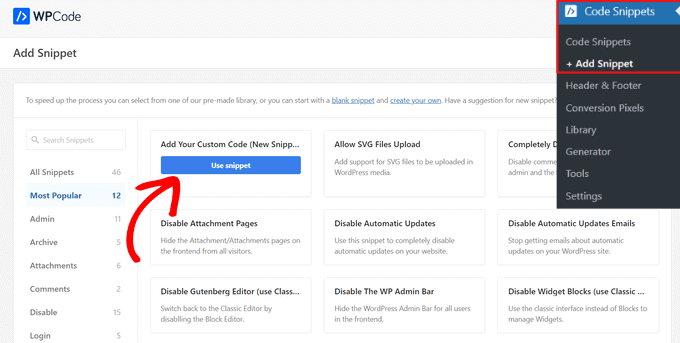
First, let’s install the plugin in WordPress. Once it’s active, go to Code Snippets » + Add Snippet. Then, select ‘Add Your Custom Code (New Snippet)’ and click ‘Use snippet.’
You will now arrive at the code editor. Let’s give your custom code snippet a name first so that you can easily identify it later. For this one, we will name it ‘Facebook JavaScript SDK’ because that’s what we will add here.
Now, keep this tab open and create a new tab on your browser to go to the Facebook Developers page.
In the menu, click ‘Log In’ to sign in to your Facebook account.

If this is your first time accessing the page, then complete the onboarding wizard to create a free account.
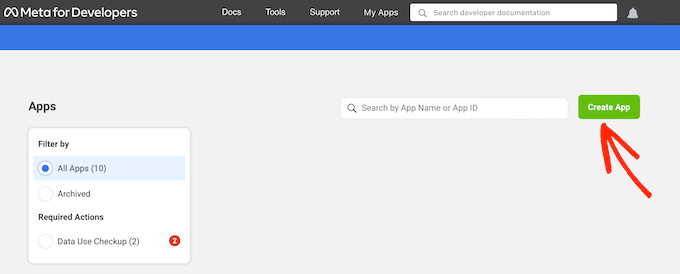
You will then be directed to the Facebook Developers dashboard. Let’s click on the ‘Create App’ button.
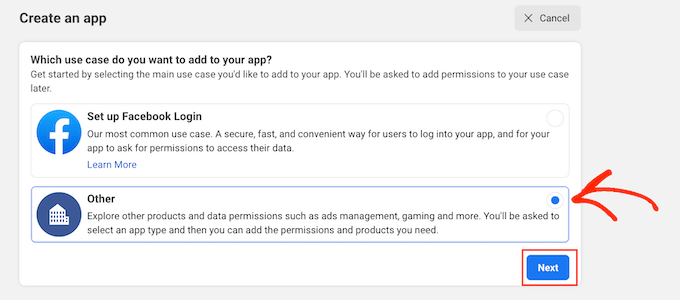
On the next page, just select ‘Other’ for the use case.
After that, click on the ‘Next’ button.
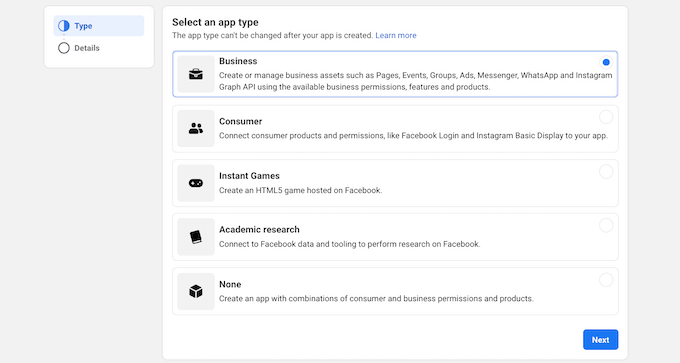
Now, you will see all the different apps that you can create for your Facebook page.
To create a Like Box, you can just select ‘Business’ and then click on ‘Next.’
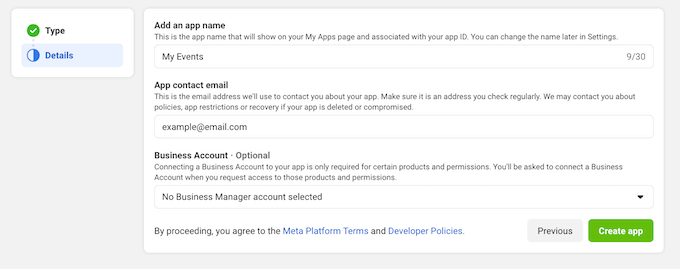
Let’s now give your app a name. It can be anything you like since this is just for reference. You can also enter your email address and select an optional Business Account.
Finally, just click ‘Create app.’
Let’s now go to the Facebook Developers page for social plugins.
Then, scroll down until you find a section like in the screenshot below:
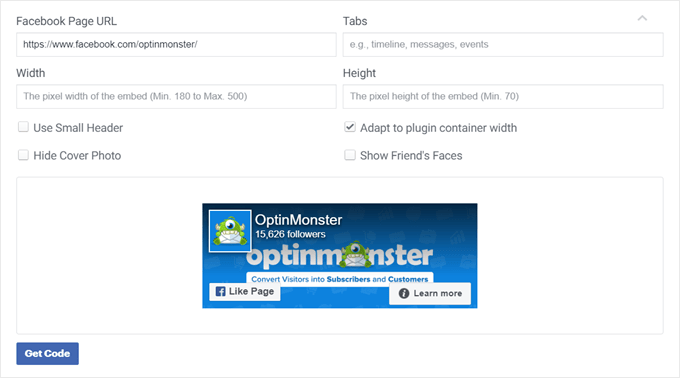
Here, make sure to fill out your Facebook page URL, empty the ‘Tabs’ field, and specify the width and height of the Like Box if needed.
You can also choose to use a smaller header, disable the cover photo, and more. We’ve also chosen to adapt the Like Box to fit the container width so that the size will adjust responsively to where it’s placed on the website.
Once done, click the ‘Get Code’ button. You will then see a popup that shows you two types of code snippets: JavaScript SDK and iFrame. Both will display your Like Box, but in general, JavaScript SDK is a much better option.
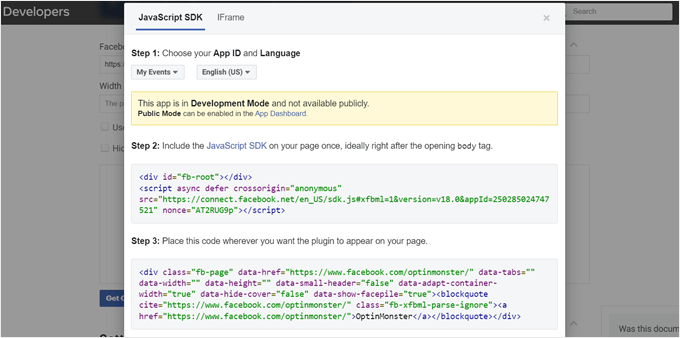
JavaScript SDKs are usually faster because they are directly embedded into the webpage, allowing them to load as part of the main document. iFrames require loading an entire HTML document, which can slow down the page load time.
In the JavaScript SDK tab, make sure the app name you created earlier has been selected.
Then, go ahead and copy the JavaScript SDK API code from Step 2. Now, keep this tab open, but switch to the WPCode tab and paste the code there.
You can leave the Code Type as ‘HTML Snippet.’
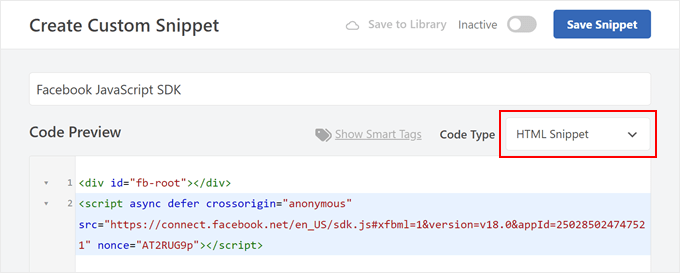
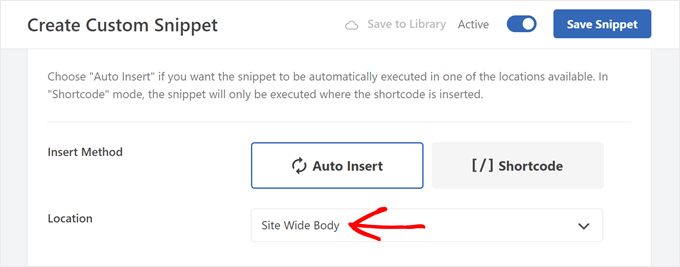
Now, scroll down to the ‘Insertion’ section.
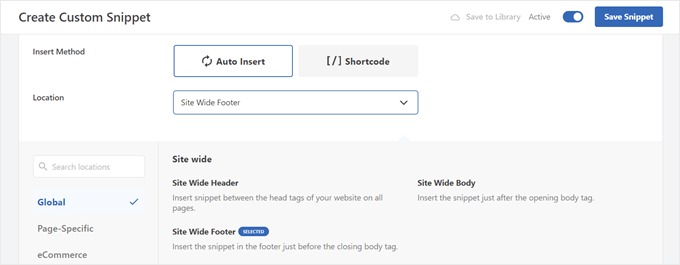
The Insert Method can be left as ‘Auto Insert,’ while the Location should be changed to ‘Site Wide Body.’
Finally, just make the code active and click ‘Save Snippet.’
Next, you will create a second code snippet. You can follow the same steps as before and call it something like ‘Facebook Like Box.’
After that, switch to the Facebook Developers page for social plugins from earlier and copy the code from Step 3.
Navigate to the WPCode tab again and paste the Step 3 code in the Code Preview box. The Code Type can be ‘HTML Snippet.’
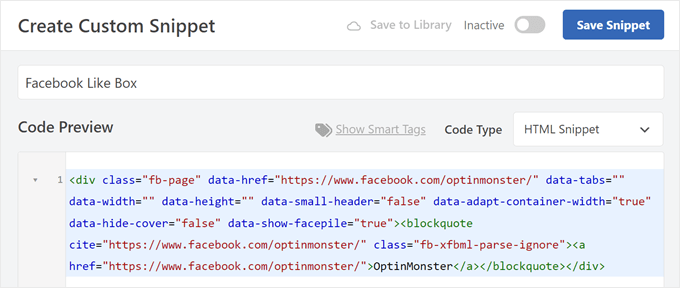
Let’s scroll down to the ‘Insertion’ section.
If you use ‘Auto Insert,’ then you can make the Like Box appear automatically in multiple places that fit the Location category.
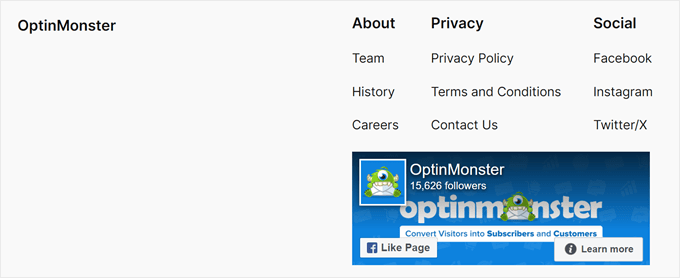
In our example, we have decided to choose the ‘Site Wide Footer’ location, which means the Like Box will appear in the footer.
There are other options, too, like Insert Before Post, to display the Like Box before all of your WordPress blog posts.
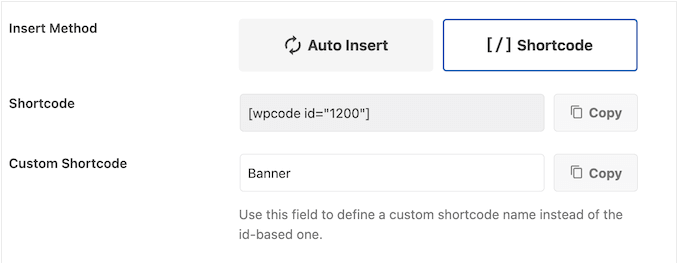
On the other hand, the ‘Shortcode’ method allows you to create a custom shortcode.
You can then add it to specific parts of your website using the shortcode block.
Once you’ve configured the Insertion settings, just make the code active and click ‘Save Snippet.’
That’s it! You can then visit your website to see what Like Box looks like:
For more guides on displaying social feeds on your WordPress site, check out our article on adding social media feeds in WordPress.
We hope this article has helped you learn how to add a Facebook Like Box or Fan Box in WordPress. You may also want to check out our ultimate social media cheat sheet and list of the best social media plugins for WordPress.
If you liked this article, then please subscribe to our YouTube Channel for WordPress video tutorials. You can also find us on Twitter and Facebook.
این خبر را در ایران وب سازان مرجع وب و فناوری دنبال کنید